Tag: D365

  • Simple Lambda Expressions in OData: Filtering by Related Records in Dataverse

    Simple Lambda Expressions in OData: Filtering by Related Records in Dataverse

    If you’ve worked with the Dataverse Web API, you’ve written $filter=revenue gt 100000 a hundred times. But what about questions like:

    • “Which accounts have at least one email mentioning invoice?”
    • “Which accounts have all their tasks closed?”

    A plain comparison can’t answer these, because the data you’re testing lives in a collection of related rows, not on the account itself. This is exactly what OData lambda expressions are for.
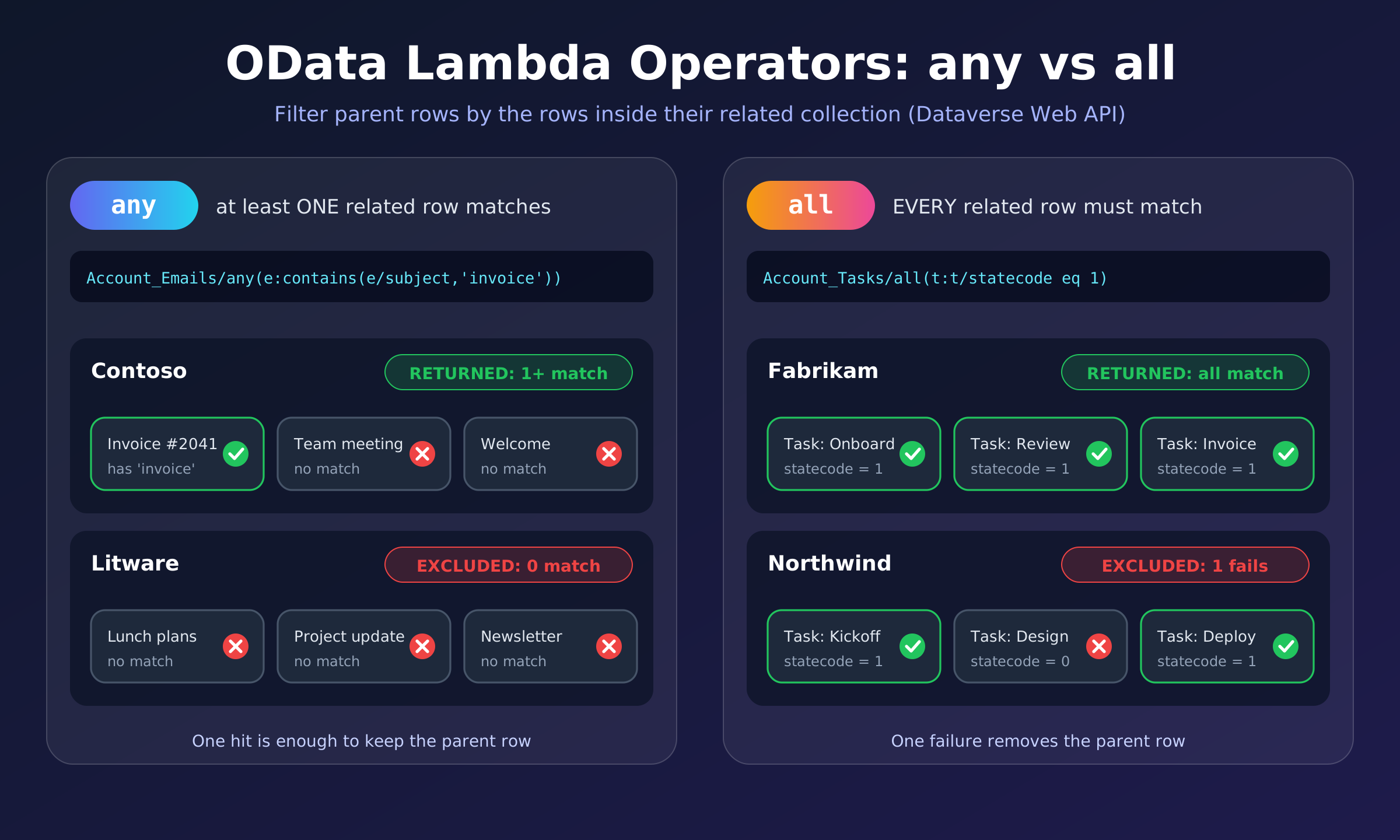
    Diagram comparing OData any and all lambda operators in Dataverse $filter, showing which parent rows are returned or excluded

    What is a lambda expression in OData?

    A lambda expression lets you test every row in a related collection against a condition, and keep the parent row only if the collection satisfies it. OData gives you two lambda operators:

    OperatorReturns true when…
    anyat least one related row meets the condition
    allevery related row meets the condition

    Calling any with no condition at all simply checks that the collection is not empty.

    The syntax

    <collection>/any(o:<condition using o>)
    <collection>/all(o:<condition using o>)
    • <collection> is a collection-valued navigation property (a one-to-many or many-to-many relationship name, for example Account_Emails).
    • o is a range variable: a short name that stands for one row of the collection while it’s being evaluated. By convention, use the first letter of the related table (e for email, t for task).
    • Inside the condition, use o/<column> to read a column on that related row.

    Think of it as the C# LINQ you already know: accounts.Where(a => a.Emails.Any(e => e.Subject.Contains("invoice"))).

    Example 1: any, accounts with a matching email

    GET [Organization URI]/api/data/v9.2/accounts?$select=name
    &$filter=Account_Emails/any(e:contains(e/subject,'invoice'))

    Read it as: return accounts where any email e has a subject containing “invoice”.

    Example 2: all, accounts with every task closed

    GET [Organization URI]/api/data/v9.2/accounts?$select=name
    &$filter=Account_Tasks/all(t:t/statecode eq 1)

    Read it as: return accounts where all tasks t have statecode equal to 1 (completed).

    Heads-up: by standard logic, all is true for an empty collection, so you should expect accounts with no tasks at all to show up too. If you only want accounts that have tasks and all are closed, combine it with an any check:

    &$filter=Account_Tasks/any() and Account_Tasks/all(t:t/statecode eq 1)

    Example 3: multiple conditions on the same related row

    You can use and / or inside the lambda:

    GET [Organization URI]/api/data/v9.2/accounts?$select=name
    &$filter=Account_Emails/any(e:contains(e/subject,'invoice') and e/statecode eq 0)

    Here one single email must satisfy both conditions: subject contains “invoice” and it’s active. That’s different from two separate any calls, where each could be satisfied by a different email.

    Example 4: nested lambdas

    Lambdas can be nested to go a level deeper, and combined with regular filters:

    GET [Organization URI]/api/data/v9.2/accounts?$select=name
    &$filter=(contact_customer_accounts/any(c:c/jobtitle eq 'CFO' and
    c/opportunity_customer_contacts/any(o:o/description ne 'N/A')))
    and endswith(name,'Inc.')

    Meaning: accounts whose name ends with “Inc.” and that have a contact with job title “CFO” who has at least one opportunity with a description other than “N/A”.

    Things to watch out for

    1. Use the relationship’s navigation property name, not the table name. The exact names (like Account_Emails) are visible in the $metadata document or the table’s relationships in the maker portal.
    2. Lookup navigation properties can’t wrap a collection. A filter that goes through a single-valued lookup and then into a collection, such as primarycontactid/new_contact_account/any(...), is not supported.
    3. Performance matters. Keep nested lambdas shallow and always use $select to return only what you need. Dataverse also limits a query to 500 conditions in total.
    4. String comparisons are case-insensitive, and special characters in values need URL encoding (for instance + becomes %2B).
    5. Avoid leading wildcards like %value in string filters; they can’t be optimized.

    Quick cheat sheet

    I want accounts where…Filter
    there is at least one related rowRelation/any()
    at least one related row matchesRelation/any(x:x/col eq 'v')
    every related row matchesRelation/all(x:x/col eq 'v')
    one row matches multiple conditionsRelation/any(x:x/a eq 1 and x/b eq 2)

    Wrapping up

    Whenever your filter question starts with “which records have any / all related records that…”, reach for any and all. Once the collection/any(x: ...) shape clicks, it replaces a lot of extra round trips and client-side filtering.

    Reference: Filter rows by using OData, Microsoft Learn

  • Preview -Split Audience in the Customer Journey by Percentage/Number

    In the latest update from Microsoft, a highly anticipated feature has been introduced: the ability to split the audience in a journey based on either a percentage or a specific number of customers. This enhancement is a game-changer for many clients, as it allows them to efficiently target specific customer segments within a single journey. For example, businesses can now easily offer “First 1000 Coupons” to the first 1,000 customers without needing to create multiple journeys. Previously, marketers had to rely on branching using attributes, if/then conditions, or trigger activation checks within the journey. These methods, while functional, could sometimes cause delays in processing. This new feature streamlines the process, ensuring faster and more effective campaign execution.

    To use this feature in the customer journey you need to select “Audience split(preview)” tile in the journey as below –

    Then you will get the below screen to split the audience based on percentage as below-

    As you can see, the current option to “Split audience by” only allows for selection by percentage, with no option to split by a specific number. This limitation might be due to the feature being in preview, meaning it’s still in the testing phase and not fully rolled out. It’s possible that the ability to split the audience by a specific number will be included in future updates as Microsoft continues to refine and expand this feature. Keep an eye out for upcoming releases, where this capability may become available.

    Let’s dive into the “Split Audience by Percentage” feature. With this capability, you have the flexibility to divide your audience between branches based on the percentage you specify. If you want to split the audience equally, it’s as simple as clicking the “Add branch” button and then selecting the “Equalize” option. This automatically distributes the audience evenly across the branches.

    However, if you have a specific plan in mind, you can manually adjust the percentages to match your strategy. Once your audience is divided, you can assign different activities to each branch. For instance, in my example, I’ve chosen to send 50% of the audience an email (Email 1) with one type of content, while the remaining 50% receives a different email (Email 2) with other content. This level of customization allows for more targeted and effective campaigns, tailored to different segments of your audience.

    This feature also provides valuable insights into how different segments of your audience respond to specific actions within each branch. By comparing these reactions, organizations can optimize their strategies, ultimately driving better sales performance.

    For details around the Split Audience by Number you may go through below blog –

    https://learn.microsoft.com/en-us/dynamics365/release-plan/2024wave1/customer-insights/dynamics365-customer-insights-journeys/provide-varied-experiences-one-journey-using-journey-split-tiles#feature-details

    Hope to see many such interesting features in future !!

  • Tip – Setting Default Time Zone for Real-time Journeys in Customer Insights- Journeys

    Whenever we create a new Real-time journey in Dataverse, we see the Default time zone set to “GMT Coordinate Universal Time” as below. This is the default behavior of journeys. And then when we need to run the journey in specific time zone we change the value of the time zone dropdown to specific time zone and then publish the journey.

    Have seen couple of times if we don’t change the journey time as per the selected time zone and publish the journey then we will have to wait for the corresponding GMT time to start the journey.

    So in-order to address this thing we have option to select the Default settings for the time zone by following below steps.

    Navigate to Settings > Journey Settings as below.

    You will get the below page opened, on click of Journey settings where we will get the dropdown for time zone type as below-

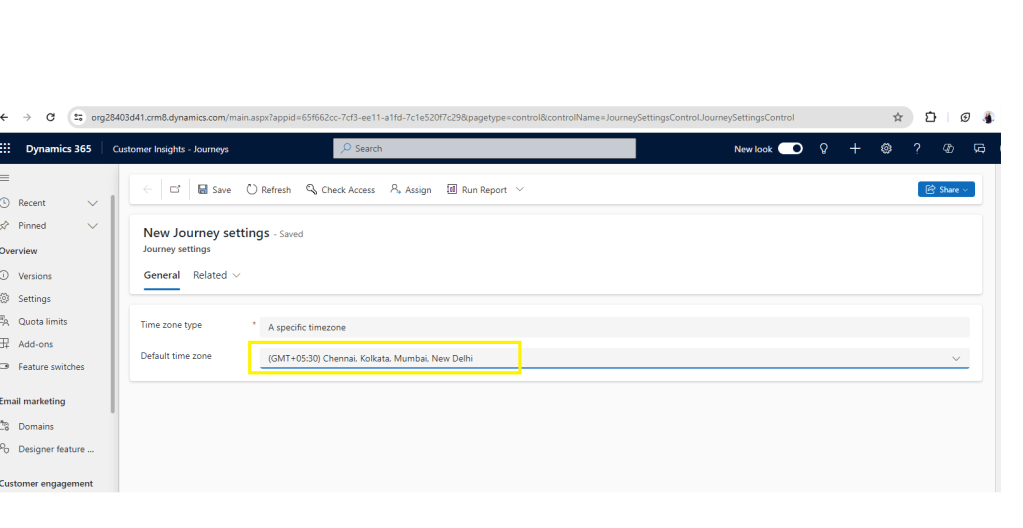
    So as you can see above we have 2 options here

    Option 1 – As specific timezone

    When we select this we get the option to select a default time zone which we want to be applicable for all the journey records created after enabling this setting.

    So after selecting this option we need to select the Default timezone which we want to apply for new journeys as below-

    After enabling this setting the new journey records will populate the same time zone value as selected above.

    Option 2- The time zone of the user who creates the journey

    When we select this option the default time zone on the journey is set as per the time zone of the user creating the journey. So if you want to apply user’s time zone to the journeys created by them, we can have this setting enabled as below.

    When we enable any of the above options as per the business need, we will start seeing the changes in the default time zone set on the new journey records as below-

    Note– This setting will work for the new journey records created after enabling the settings.

    Hope this setting is useful for people like me who don’t want to manually change the time zone every time they select a new journey record.

  • Exit RTM Journeys using Exit Criteria – Part 2 using Segments

    In the earlier blog, we have seen how we can use Custom Triggers in the exit criteria so that the customers can exit the journey in between when the trigger is activated.

    Today we will see how we can do it using Segments. In the Exit Criteria in Journey we have another option as below –

    “Exit by segments” — So once the contact gets added to the selected segment then it should exit the current Journey.- this is the expected behavior. As we are considering the same journey flow as we had in part 1 so I will directly jump into the Segment creation part which we will select in the Exit criteria.

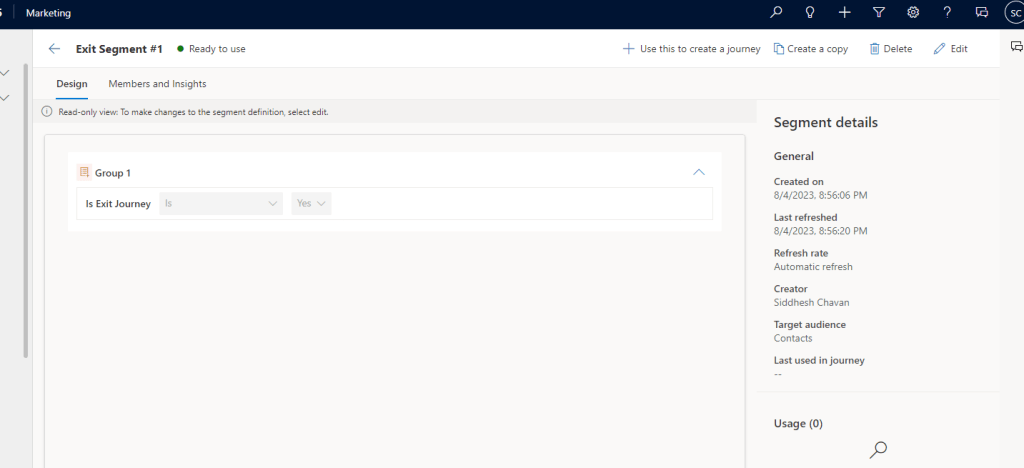
    Exit Segment #1–

    As per this, the contacts will get added in this Segment when Is Exit Journey = Yes.

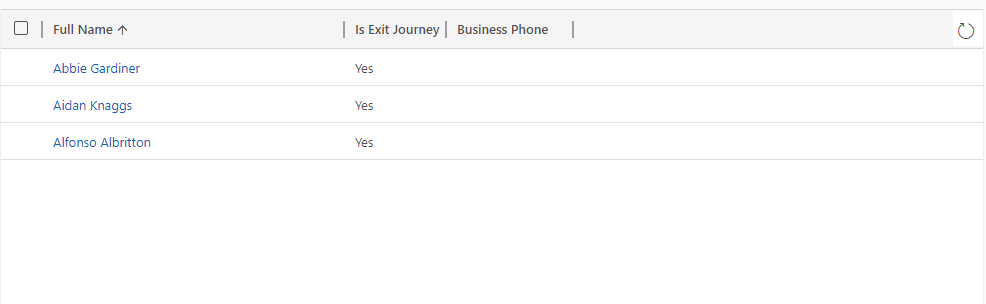
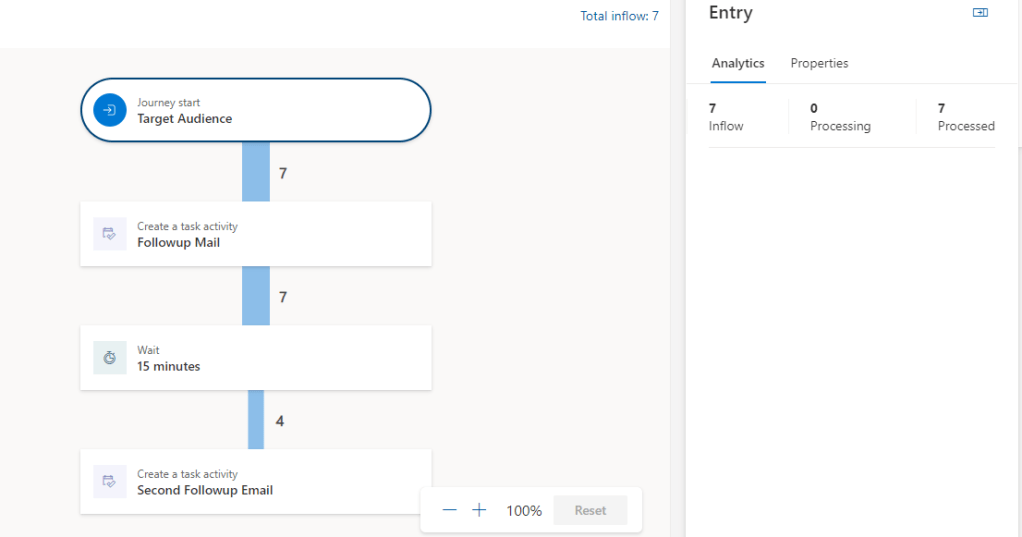
    So first in our journey the Contacts will flow till it encounters the 15 min wait time, then we will update the Is Exit Journey column of 3 contacts as Yes as below –

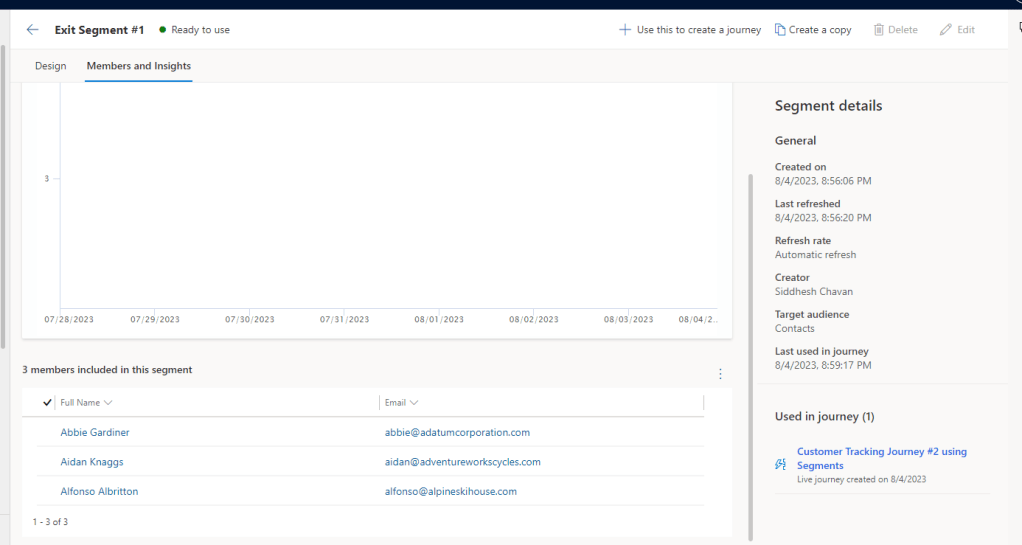
    Now the 3 contacts will be added in the segment “Exit Segment#1” as you can see below-

    Now in our Journey after execution of wait block it will look like below-

    4 contacts will move ahead and 3 contacts are exited as it gets added to the “Exit Segment #1” segment.

    In this way we can make use of Segments to exit from the Journeys based on respective segments.

    Hope this helps!

    Happy D365 Marketing!!

  • Tip – Working with Custom Triggers, Azure Service Bus in D365 Marketing!!

    Custom Triggers in Real Time Marketing helps us to achieve different Integrations with multiple system and the contacts in D365 Marketing. There by helping to facilitate the Journeys through various channels and systems. Today I will explain here one of the use case which I recently came across.

    I had a requirement where I had to assign the available Offers(Table) to the contacts entering the Journey. And on successful assignation of Offers we had to continue the journey to send the related offers through Email.

    So here I decided to have one custom trigger “Grant Offer” to be called in Journey as below –

    And then when the custom trigger gets called pass the data to Azure Service Bus through Endpoint Integration with D365 Marketing.

    Reference for Azure Integration and registering Service End using Plugin Registration Tool- https://learn.microsoft.com/en-us/power-apps/developer/data-platform/walkthrough-configure-azure-sas-integration?view=op-9-1

    So basically as explained in the blog we had registered Plugin Step on the Service Endpoint with the message set to “msdynmkt_grantoffer_XXXXX” which is nothing but the Custom Trigger which we had created in RTM(Real Time Marketing).

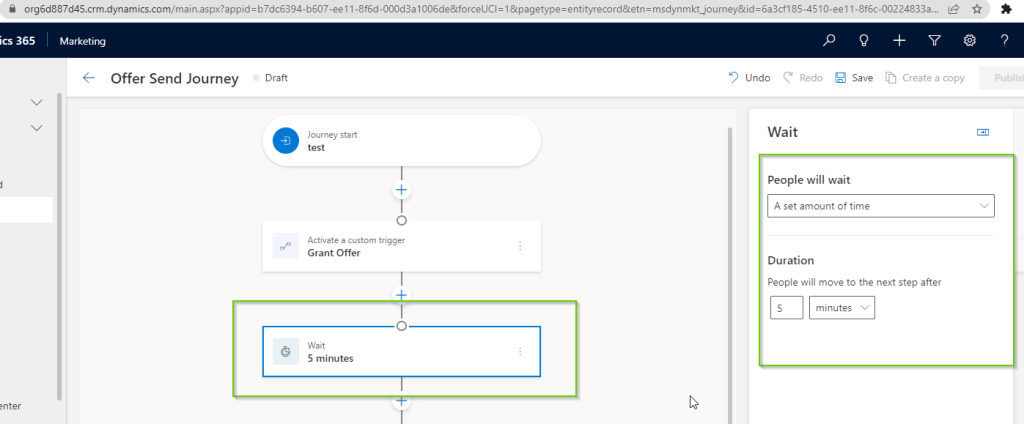
    It was ok till this point, the real challenge was with the further requirement where we had to wait till the Offer records are updated with the contact lookup entering the journey. As we were sending the value of this offer record in the Email so we had added a wait condition for 5 minutes as below –

    This was ok till the count of Contacts entering the journey was less like 50-100. Actual problem started when the record count in journey increased. I mean lot of messages were posted to the queue and the processing time was more than 5 mins. So what happened is the contacts started receiving Empty Offer values in the email as the wait time of 5 minutes was completed for that particular contact and it was still not processed by the ASB (Azure Service Bus) listening application.

    Increasing the Wait Time to 1 hour or such would have caused all the contacts in the journey to wait till the specified time. So this was not efficient and expected as every contact was forced to wait for 1 hour till it completes the processing.

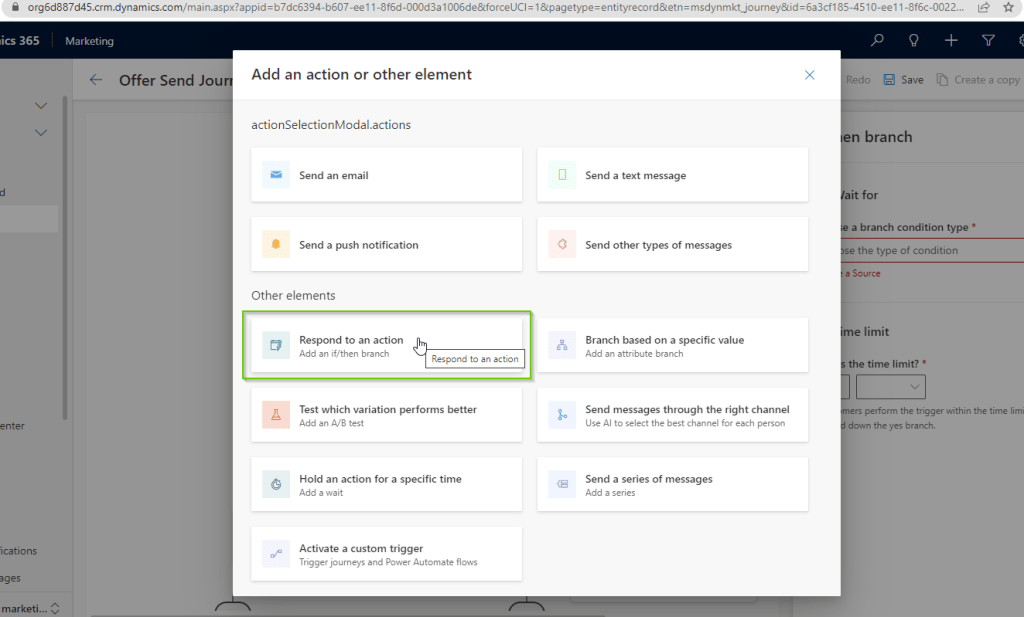
    After checking the available options, I found that we can use a custom trigger to achieve this. There is an option “Respond to an action” which can give us way to use another trigger as shown below –

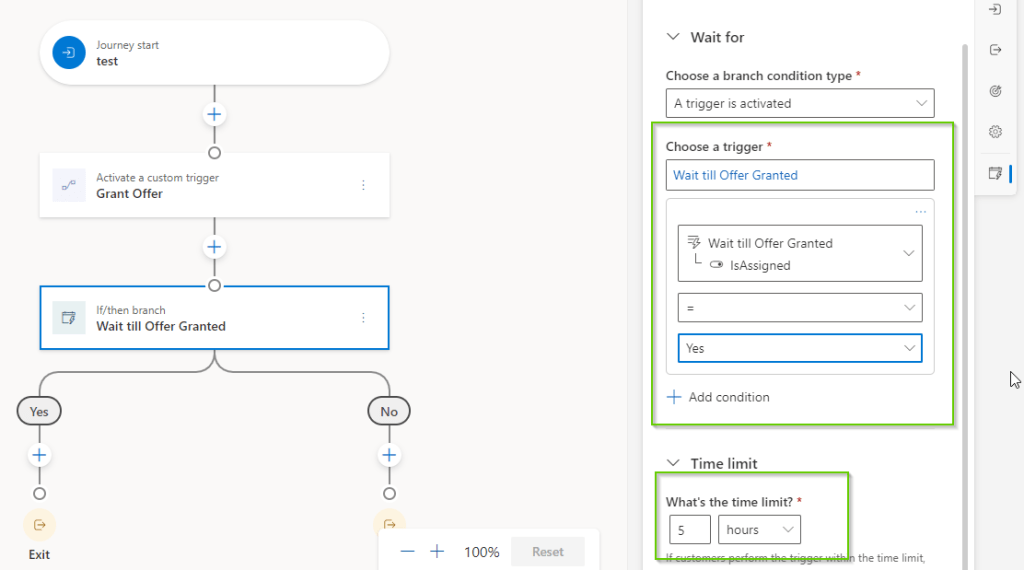
    After adding the above step we get below screen to configure the setting –

    After selecting the “A trigger is activated” option in Wait for condition and selecting the new trigger “Wait till Offer Granted”, I got the option to select the attribute “IsAssigned” which I had created as parameter for the “Wait till Offer Granted” trigger. So I configured the condition as shown below

    As you can see here there is Time Limit selected as 5 hours so it means at the max it will wait till 5 hours and then it will proceed to “No” branch.

    Further, the most important change I had to add was the logic to call this new trigger “Wait till Offer Granted” from my ASB listener application, just after the Offer record was updated with contact lookup, just how we usually execute any OrganizationRequest in CRM C# application.

    Also, one more highlighting part here is the bindingid attribute which I had used while calling the wait trigger by passing the value of parent journey id i.e. of “Offer Send Journey”. This makes sure that the “Wait Till Offer Granted” trigger only activates for the related parent journey and not any other journey where the same wait trigger is used.

    And then guess what moment the trigger was called for particular contact in the journey it worked like charm! The contacts just started flowing in the Yes branch and I was able to manage my logic using another Custom Trigger. The Wait limit of 5 hours was just used to make sure my ASB listener will complete the process for the contacts flowing in the journey.

    Hope this approach helps you next time you try to incorporate WAITS in your Journeys in RTM.

    Cheers!!