Uncategorized

Tip – Using OData Enabled Entity Lists for reading Data in Dynamics Portal

Reading data in Dynamics Portal is always a tricky part.

Enabling OData option for the entity creating Entity List is one of the mostly used method to retrieve data from CRM.

You need to enable ODATA on Entity List record as shown below:

And then querying the OData through JavaScript we get the data for Entity.

Everything was working fine as expected till months. Suddenly the client reported that they are not getting the desired results.

Then on investigating the issue I found the below interesting tip which I would like to share with all here

On debugging the issue, I found we were getting the below error:

“500 (Internal Server Error) “. So, wasted more time in trying to find the exact error as debugging the scripts in Portal is troublesome.
So later I just checked the url to check OData Enabled Entities

[portal url without language code]/_odata
In my case: https://blog4.microsoftcrmportals.com/_odata/

Exception: “Could not find an View (savedquery) record where savedqueryid equals 49116ae9-c668-e811-a95d-000d3a1ca939.”

From this I understood that the exact error that was causing the OData request to fail is the view is missing or deleted from system.

So, from the error it was clear that one of my view was used in an Entity List was deleted from the System but as the error is a generic one I couldn’t get the exact Entity for which it was showing the error.

So, I had to later do an Advanced Find with below queries and figure out the issue causing record:

Luckily there were 2 records only one for the Contact and one for the Account.
And for the Account I found the reference was blank as below:

So, I resolved the issue setting the appropriate View in the above setting.
However, I thought the fields should have been mandatory when I enable the OData but they were not.

So, give it a more try I enabled one more Entity List and didn’t select any of the view. And then I again checked if everything is working fine or not.

And guess what everything was working without any issue.

So what was the reason it was failing when the view was deleted for my first scenario?

In Entity List we have a field named “OData View” which stores the view id which it tries to retrieve.

And based on that I found the below 2 observations

Case 1: When the view was deleted

When the view was deleted though it was not shown in the record the reference was not removed from OData View field so it was failing and causing the issue.

Case 2: When just OData was enabled and no view was selected

When only OData is enabled for entity list and no view is selected for it the OData view remains Empty and so no error is thrown in this case.

For reference:

So next time if you face any such issue you can have the OData view compared and resolve the issue 😉

Hope this helps.

Sid 🙂

Uncategorized

Quick Tip: When using Calculated Field in your Business

Aware of OOB Calculated Fields! That’s right when your Calculated field involves 2 or 3 fields then you need to be aware of below scenario:

Suppose we have below fields on the Account record:

1525879664449_image001
Sum A, Sum B, Sum C and the calculated fields Sum of A, B, C and A part by B(A/B).
Sum of A, B, C is calculated as Sum A + Sum B + Sum C;
A part by B(A/B) is calculated as Sum A / Sum B;
What if the any of the fields involved in the calculation is null or Zero in case of Division?

Scenario: If any of the field is null for Addition

1525879786772_image001

So, Sum A = 3, Sum B = 3, Sum C = null,
The expected result is 6.

But CRM handles it in different way. It ignores the calculation and sets the calculated field to null as you can see above.

This was one of the concerns which Business raised as it was not properly ignoring the null values. So later we found that this is the OOB behavior of Calculated fields.
Scenario: If Denominator is ‘0’ involved in Division

1525879893229_image001

Sum A = 4, Sum B = 0;
A part by B(A/B) = null
It does not give error. It simply ignores and sets the calculated field as null.

Recently we faced this scenario. So, after searching we got the below Option which could avoid this scenario.

Create a Business rule of Scope = Entity and try to set the Default values of the fields involved in the calculation so that it will always calculate.
Hope this helps and adds to your knowledge.

Uncategorized

Reports in Multiple Languages Enabled in CRM

Recently we had a requirement where Multiple language were installed in CRM i.e. French and English were Enabled.

So, we had a requirement to display the report based on the language selected by the user in CRM.
To achieve it we used the Languages options available in the Reports while creating/editing the report in CRM.
So, suppose we are creating an Account Test – English Report for English language using the Report Wizard. We don’t want the report to be visible if the user has selected French language.
For Account Test – English Report while creating the report from Report Wizard you will see the below options:

image001

So, as you can see you can specify the Language to be used here for the field names to be used so that it will take the value based on language selected.
Now moving further click Next and Finish with the report creation. Further you will get below window:

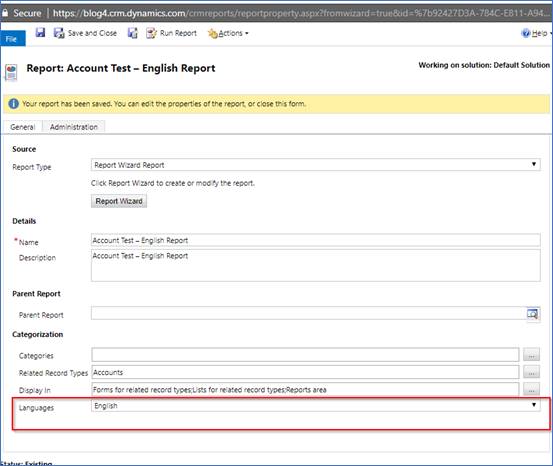
1525099301632_image001

In this window you can see the highlighted option “Languages”.
In the languages you will find options of the languages which are enabled in your system.
So, in my case I have “All Languages”, “English”,” French”. We have selected English for this report.
Now in CRM we will check for a user with English as Default language. We will see the reports available as shown below:

1525099377128_image001

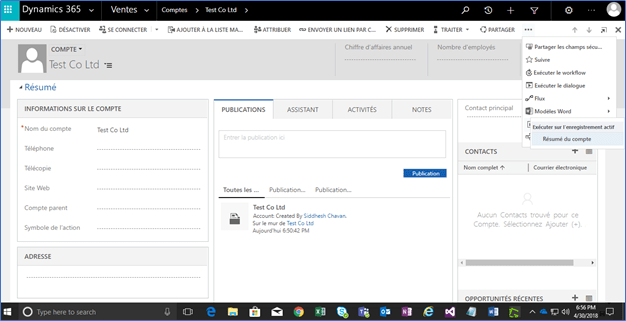
And when the user with Default Language French opens the record you won’t see the report available as shown below:

image

So using the Languages option while creating/editing report we can display the reports based on users default language as explained in this blog.

Hope this helps.

SidnCRM