Blog

  • Quick Tip: When using Calculated Field in your Business

    Aware of OOB Calculated Fields! That’s right when your Calculated field involves 2 or 3 fields then you need to be aware of below scenario:

    Suppose we have below fields on the Account record:
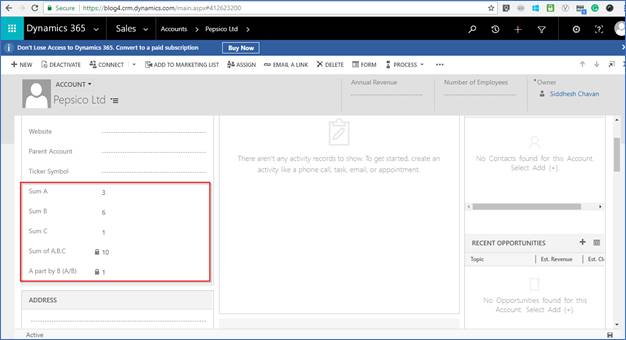
    1525879664449_image001
    Sum A, Sum B, Sum C and the calculated fields Sum of A, B, C and A part by B(A/B).
    Sum of A, B, C is calculated as Sum A + Sum B + Sum C;
    A part by B(A/B) is calculated as Sum A / Sum B;
    What if the any of the fields involved in the calculation is null or Zero in case of Division?

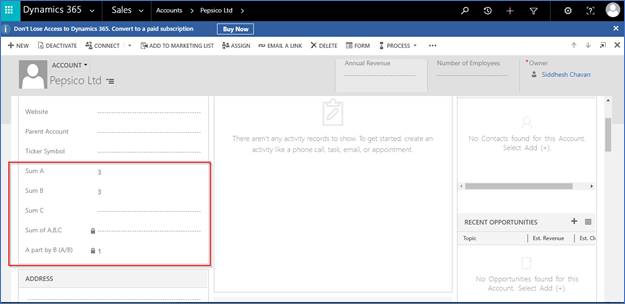
    Scenario: If any of the field is null for Addition
    1525879786772_image001

    So, Sum A = 3, Sum B = 3, Sum C = null,
    The expected result is 6.

    But CRM handles it in different way. It ignores the calculation and sets the calculated field to null as you can see above.

    This was one of the concerns which Business raised as it was not properly ignoring the null values. So later we found that this is the OOB behavior of Calculated fields.
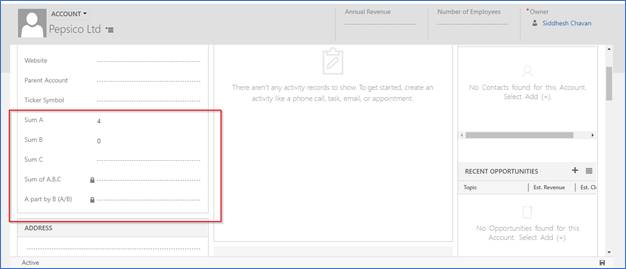
    Scenario: If Denominator is ‘0’ involved in Division
    1525879893229_image001

    Sum A = 4, Sum B = 0;
    A part by B(A/B) = null
    It does not give error. It simply ignores and sets the calculated field as null.

    Recently we faced this scenario. So, after searching we got the below Option which could avoid this scenario.

    Create a Business rule of Scope = Entity and try to set the Default values of the fields involved in the calculation so that it will always calculate.
    Hope this helps and adds to your knowledge.
  • Reports in Multiple Languages Enabled in CRM

    Recently we had a requirement where Multiple language were installed in CRM i.e. French and English were Enabled.

    So, we had a requirement to display the report based on the language selected by the user in CRM.
    To achieve it we used the Languages options available in the Reports while creating/editing the report in CRM.
    So, suppose we are creating an Account Test – English Report for English language using the Report Wizard. We don’t want the report to be visible if the user has selected French language.
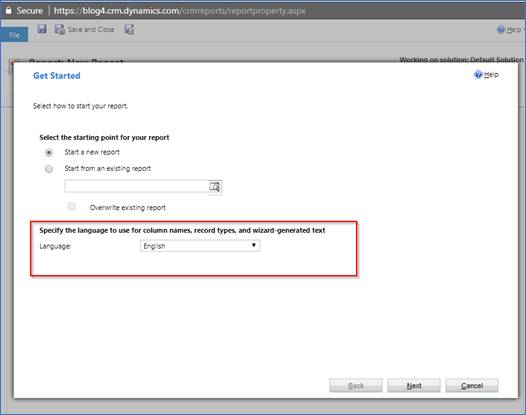
    For Account Test – English Report while creating the report from Report Wizard you will see the below options:

    image001

    So, as you can see you can specify the Language to be used here for the field names to be used so that it will take the value based on language selected.
    Now moving further click Next and Finish with the report creation. Further you will get below window:

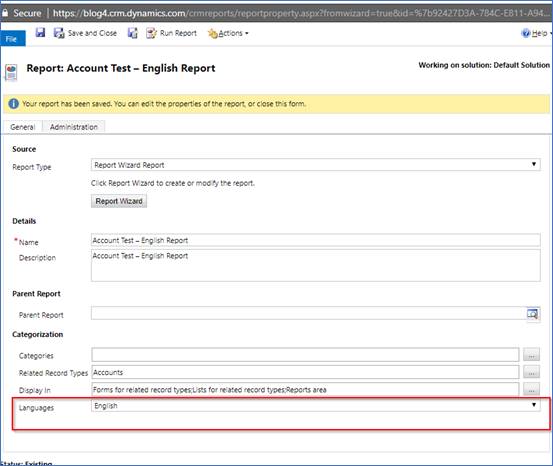
    1525099301632_image001

    In this window you can see the highlighted option “Languages”.
    In the languages you will find options of the languages which are enabled in your system.
    So, in my case I have “All Languages”, “English”,” French”. We have selected English for this report.
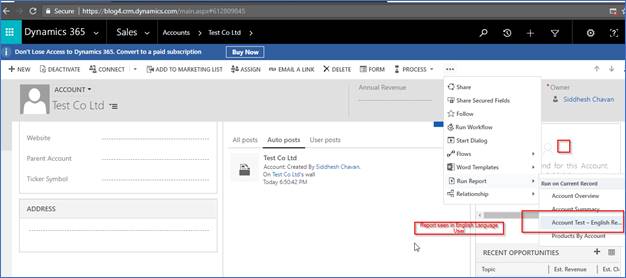
    Now in CRM we will check for a user with English as Default language. We will see the reports available as shown below:

    1525099377128_image001

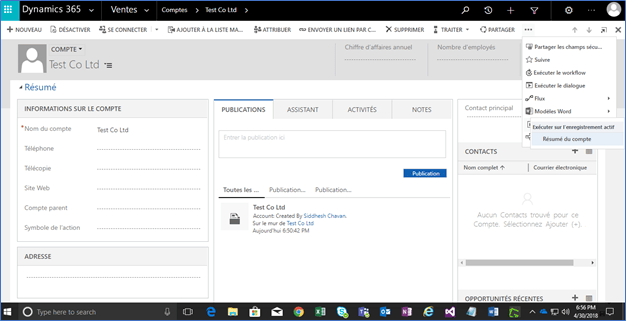
    And when the user with Default Language French opens the record you won’t see the report available as shown below:

    image

    So using the Languages option while creating/editing report we can display the reports based on users default language as explained in this blog.

    Hope this helps.

    SidnCRM