Blog

  • Tip – Email Templates for Multi-Language Enabled Organization

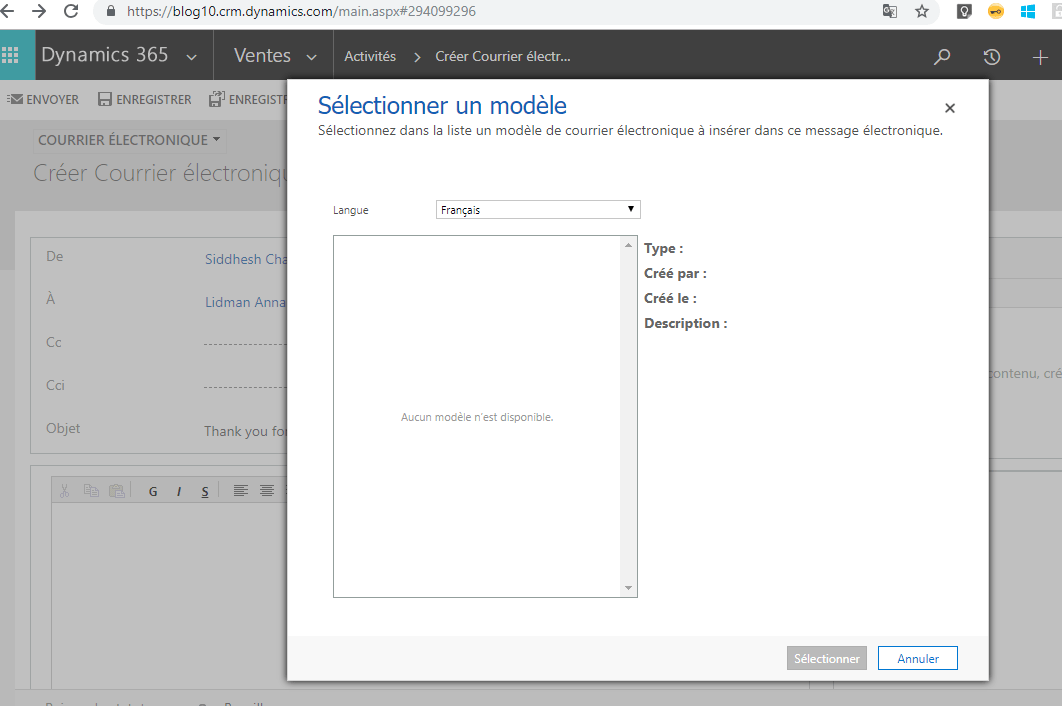
    Recently, we encountered a scenario where our client reported that the French user is unable to Insert the Email Template which the English user could see by Default on lead while create an email

    i.e.  as below no options were seen:

    2018-12-12 1

    So when the user changed the language to English he was able to select the Template and Insert it into the Email.

    However later on the client reported the bug that Status Reason field on lead is getting populated in English and not with the French.

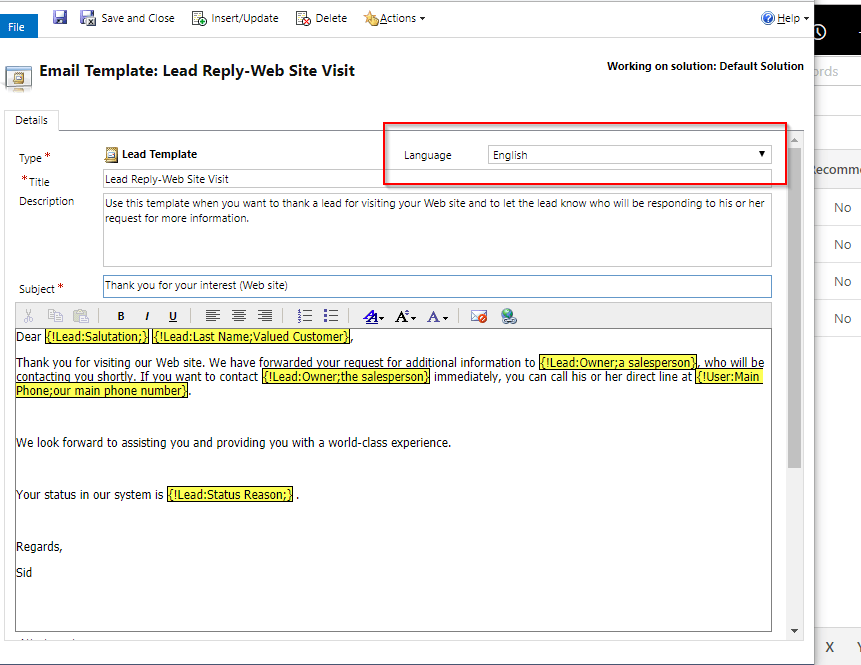
    So this brought to us the issue that the Email Templates are language specific. i.e. it depends on the language we select while creating the Email Template.

    So in our case, we had selected English language in the Email Template so it was showing English value of the Option set when selecting that:

    2018-12-12 2.png

    So for the French users to make the template visible by Default we had to create a same Email Template in French language and then the value of Status Reason in the Email was populated with the French translation in the system.

    So if you are working with Multi language enable organization then make sure you are using multiple language Email Templates too to avoid the translation issues.

    Hope this helps.

  • How does Total Time in Case Resolution is calculated?

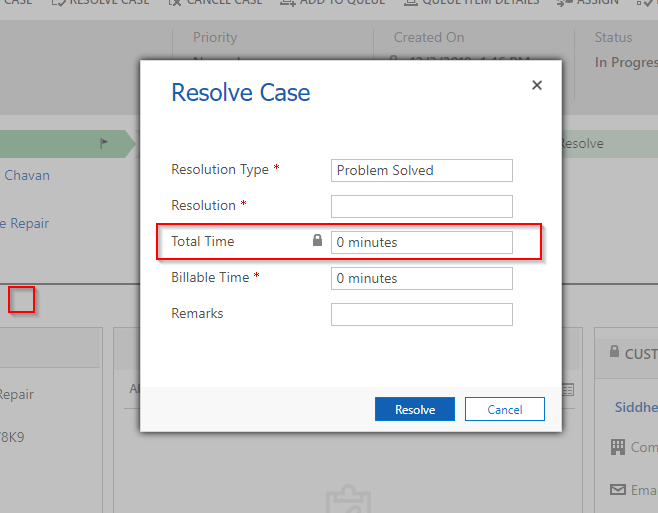
    You might have seen the popup dialog of Resolve Case when you click on Resolve Case as below:

    2018-12-03 1.png

    So, someone asked me from where the locked Total Time is calculated in the System.

    I didn’t know the prompt answer for this. So, had to go through some basics and it was worth a finding to clear my concepts.

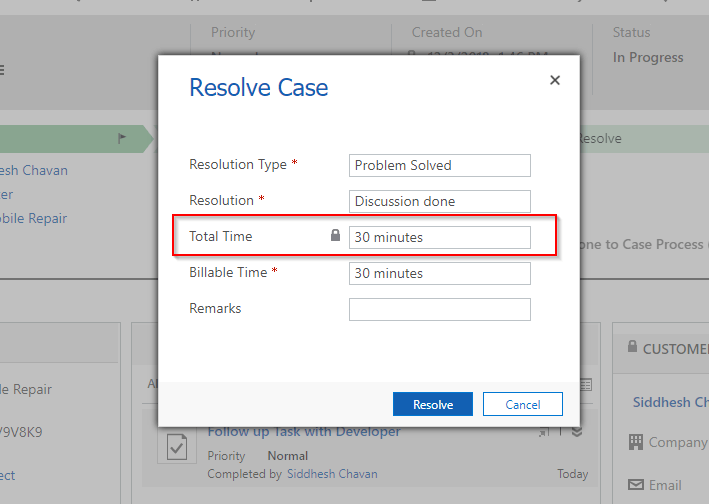
    Total Time = Duration of all the Completed Activities related to Case.

    Hence when I created a Task with Duration 30 minutes and marked it complete the Total Time populated that value i.e. 30 minutes.

    2018-12-03 2.png

    So to conclude if I had added another Activity and marked it completed then that Duration would have summed up and shown in the Total Time field when we attempt to resolve the case.

    Hope this helps.

  • Read Formatted values from Related Entities using Linq in Dynamics 365

    Recently, I was trying to retrieve formatted values using Linq.I was able to do for the attribute of the same entity with the help of this blog: Read Formatted Values using Linq.

  • How Timeout Until with particular field works in Workflow Processes in CRM

    Every System Customizer/Developer might have created a waiting workflow using Timeouts.

    Just noticed one thing which made me think is it really working as expected.

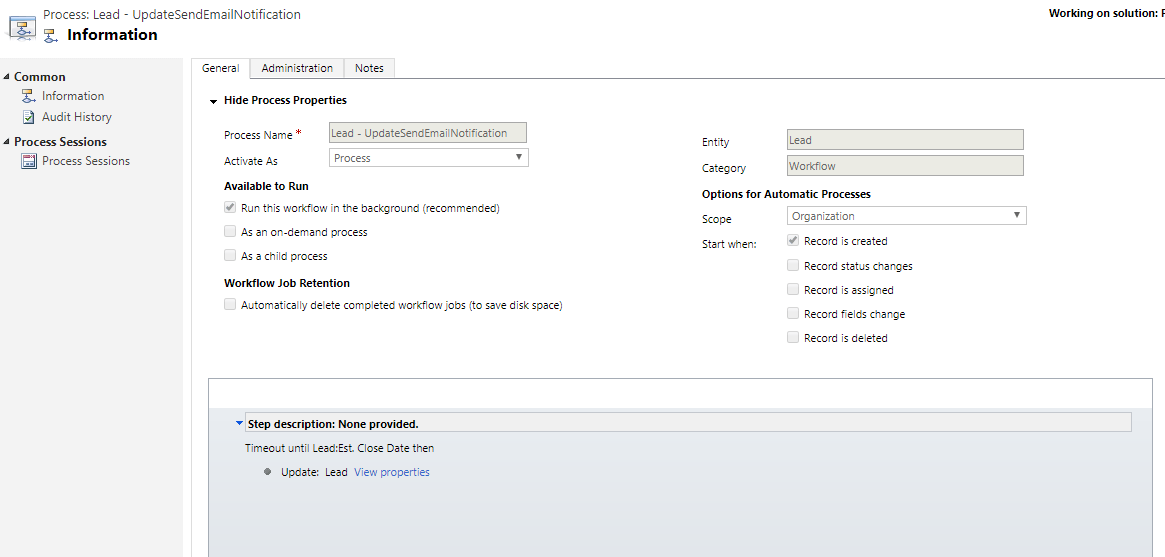
    Suppose I had a workflow on Create of Lead to wait till the Est Close Date as below:

    2018-08-25 22_13_13-Process_ Lead - UpdateSendEmailNotification - Microsoft Dynamics 365

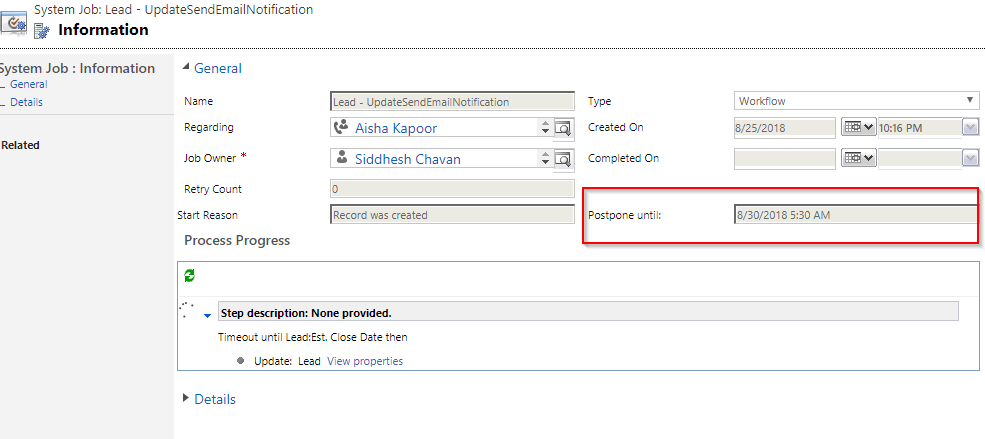
    Now I created a Lead in my System suppose so that this workflow is triggered, and it waits till the Estimated Date. So, the Process Session looks as below:

    2018-08-25 22_17_34-System Job_ Lead - UpdateSendEmailNotification - Microsoft Dynamics 365.png

    So as per this the workflow is Waiting and Postpone until Estimated Date i.e. a Future Date.

    Now suppose I change the Estimated Date to Present Date then what should happen?

    CRM interestingly handles this scenario and causes the workflow to resume and execute the logic.

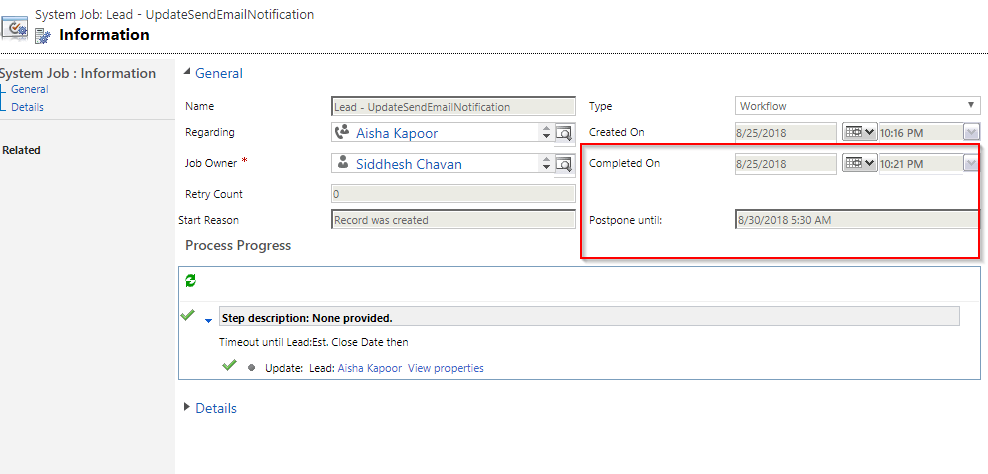
    You can see the Process Session below:

    2018-08-25 22_22_04-System Job_ Lead - UpdateSendEmailNotification - Microsoft Dynamics 365.png

    So, as you see here the Postpone Date shows the same date whereas the Completed on Date represents the workflows completion Date.

    So, CRM interestingly has a mechanism which keeps on checking whether the Timeout condition of the field is met or not and then executes accordingly by itself.

    Hope you enjoyed CRM’s interesting fact. 😊

  • Tip – Which Form Does Bulk Edit and Create/Update step in Workflow displays?

    A simple question which 3 out of 10 System Customizers/Developers may answer correctly.

    Suppose you are doing a Bulk Edit for contacts from the View a form with fields get displayed which looks as below:

    2018-08-19 17_40_11-Contacts Active Contacts - Microsoft Dynamics 365 - Microsoft Dynamics 365

    Similarly, if you add an Update Record step on a workflow on Contact record then you might see the same Form and fields without Headers as below:

    2018-08-19 17_44_34-Contact_ Information - Microsoft Dynamics 365

    So, if you ask which form fields the above form displays then you might say the Main Form. But its partially correct answer. As my Contact may have multiple Main Forms in the System.

    2018-08-19 17_49_52-Customization - Microsoft Dynamics 365

    So, the answer to this question is CRM follows the rule which it follows while opening the record of an Entity i.e. “It displays the last visited Form by the user for that Entity for which he/she is trying to Bulk Edit or trying to add Create/Update step of the particular Entity in a Workflow”.

    Hope this helps 😊