Blog

  • Alert – Changing Form Name of Forms used in Portal Configuration

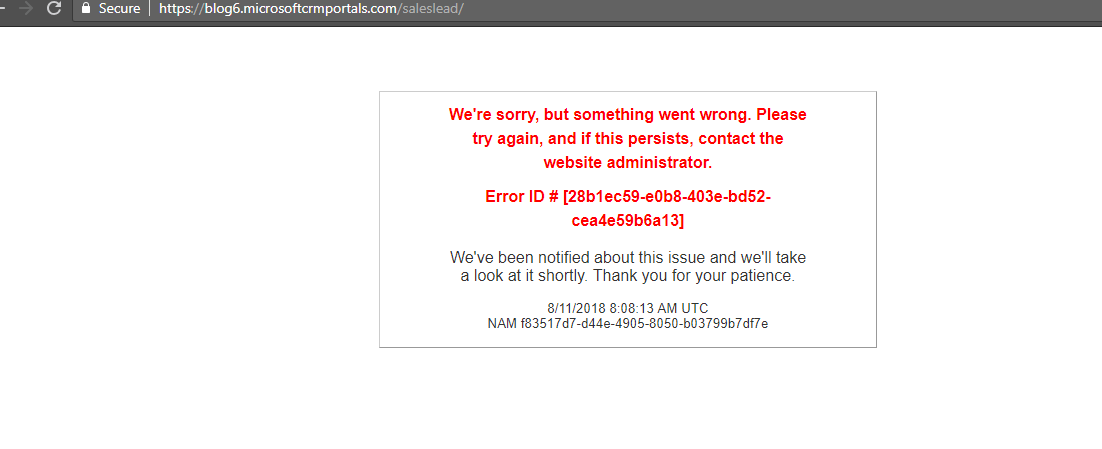
    Recently we encountered a strange issue in our Portal where the working Web Page started displaying not so descriptive but a generic error which many of you may have faced earlier for different reasons. So, the error looks as below:

    2018-08-11 13_46_40-We're sorry, but something went wrong (500)This was a generic message. Thanks for the feature where we can now Disable the Custom error which is displayed above and can show the exact error in Portal. For more details on that you may refer the below link:

    https://docs.microsoft.com/en-us/dynamics365/customer-engagement/portals/view-portal-error-log

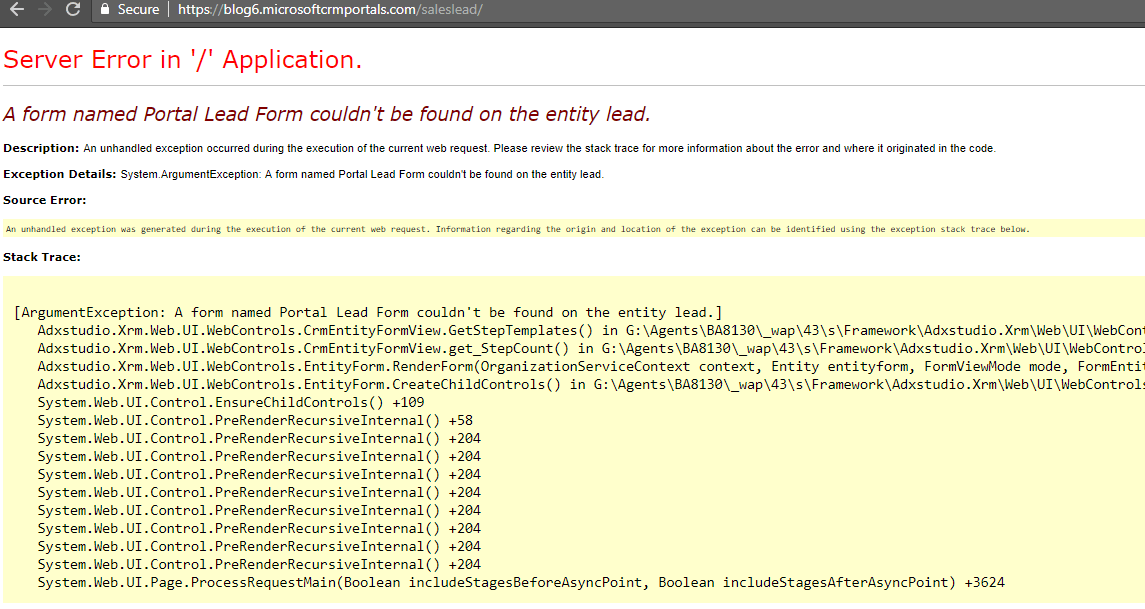
    So, Disabling the Custom Error gave me the exact error in my case as you can see below:

    2018-08-11 13_56_44-A form named Portal Lead Form couldn't be found on the entity lead.

    This was strange as the configuration was working fine earlier and then it stopped working.  But the fact was that we had changed the form name from “Portal Lead Form” to “Extended Portal Lead Form”.

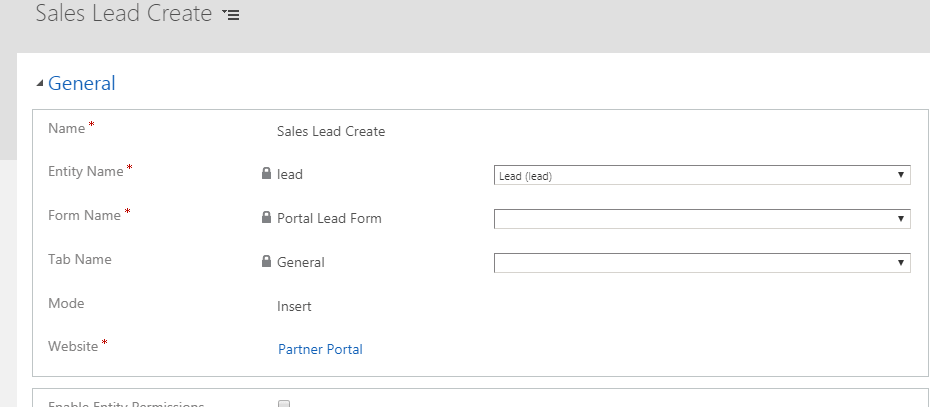
    So, we opened the Entity Form to check the form selected on the record.

    2018-08-11 14_10_31-Entity Form_ Sales Lead Create

    And there you can see the dropdown is blank and the Form Name field contains the old value i.e. Portal Lead Form which was causing the error.

    So, the conclusion is if you are changing the Form Name of any Form which is used in Portal Configurations then make sure you update the records manually with the latest values.

    Hope this helps 😊

  • Unit Testing of Queries involving LINQ Joins with Fakes C#

    Recently we encountered a scenario where we had join queries involved in our code.

    So, the requirement we had to pass the data of the joined entities accordingly which would satisfy the code logic in our Unit Test.

    But it was not as easy as we thought as there is a tricky part involved there.

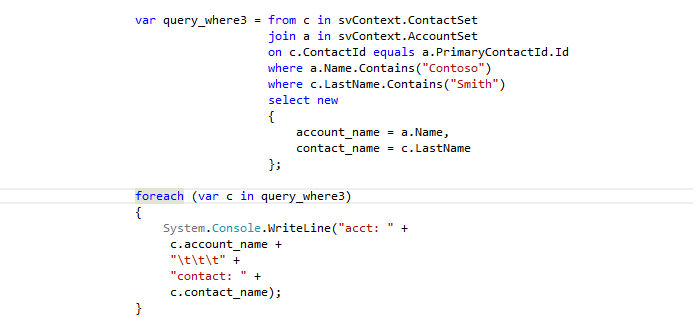
    Sample Plugin Code for which we will be creating Unit Test:

    1

    As you can see in our code we are querying the Contact entity and using Joins with the Account entity to read the Account Name along with Contact Last Name.

    So, we will be adding the below code to send the record in the Response:

    2

    But the problem here was How to send the joined Entity’s value as if we don’t pass any value then it was showing null value in the returned query results.

    So, we thought of going for AliasedValue concept. So we decided to pass “a.name” field in the attributes and set the value as below as in our Linq query we had used “join a” in the Linq query:

    contactObj.Attributes[“a.name”] = new AliasedValue(Account.EntityLogicalName, “name”, “Test Sid”);

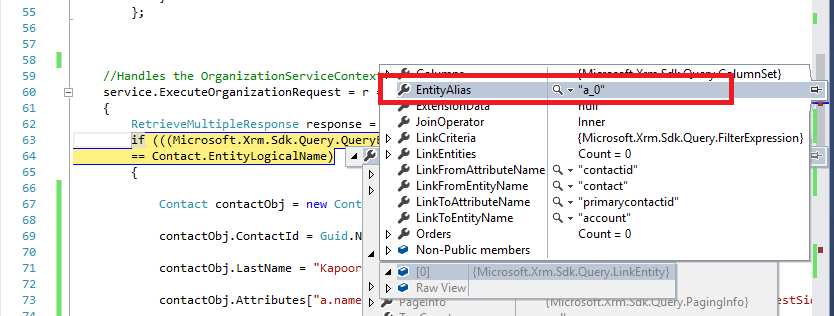
    But still, it didn’t work. On further spending more time and debugging the request we found the tricky part involved:

    3

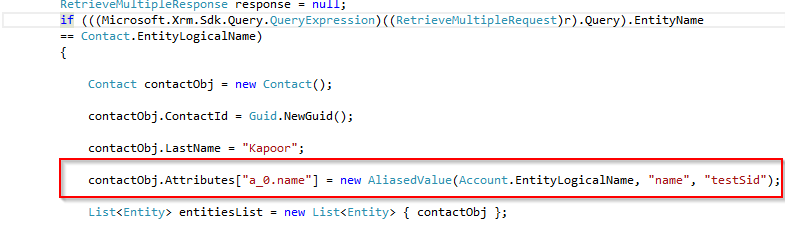
    So as you can see the Entity Alias name involved is “a_0” and not “a” so we changed the code to “a_0.name” as below and it worked like a charm 😊

    4

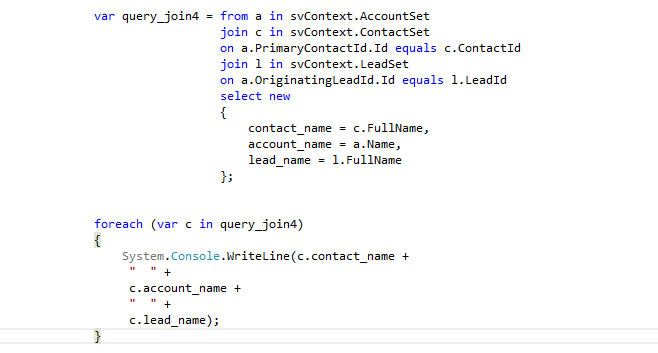
    The above example shows how it works when one join is involved. Just for more curiosity, I tried with below multiple joins query:

    5.png

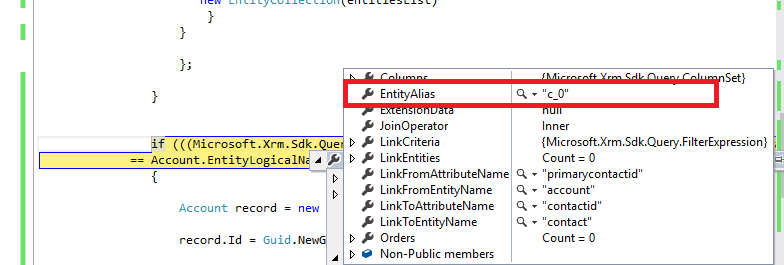
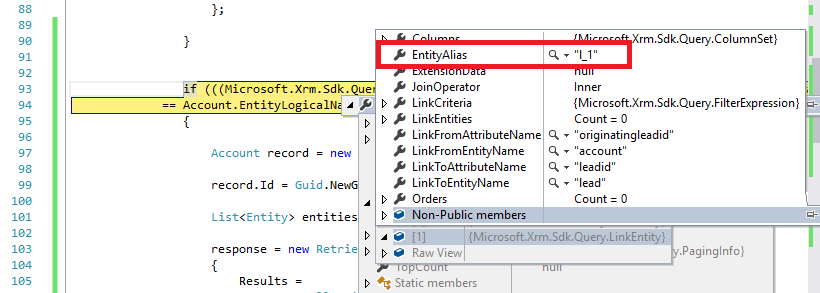
    So, it returns the link entity information as below:

    For 1st Join on Contact

    6.png

    For 2nd Join on Lead

    7.png

    From the above results, I came to know that joins in LINQ works in a bit different way!!

    The entity alias name is populated based on the joins order in your LINQ Query starting from 0 and increasing further if the query contains more joins along with the variable used for the respective entities.

    Hope this helps and ease your Unit Testing with Fakes.

  • Unit Testing & Handling CRM Requests using Fakes C#

    Recently we were working on Unit Testing using Fakes for our Plugin. We faced a strange issue while writing the Unit Test for code as we had request involved there.

    We were using RetrieveAttributeResponse in our code. But we were unable to set the expected response in Unit Test as AttributeMetadata is a read-only attribute and we cannot set it using the standard way.

    We found some alternative blogs which mentioned using Wrapper classes approach for the same:

    http://www.alexanderdevelopment.net/post/2013/01/13/How-to-unit-test-C-Dynamics-CRM-interface-code-part-III

    https://nishantrana.me/2014/01/25/unit-test-retrieveattributeresponse-in-crm-using-microsoft-fakes/

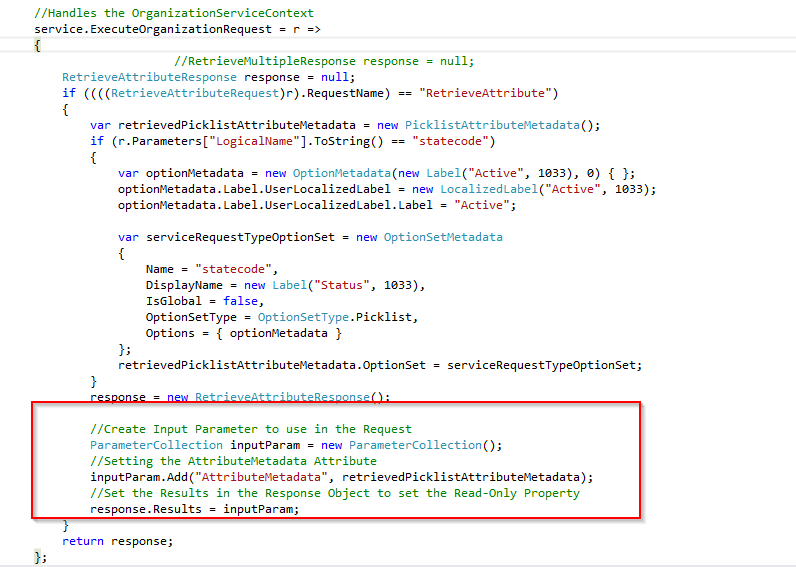
    But I was not willing to change the code and use Wrapper classes for this. So, after investing my time in research I found that below approach and the code worked for us like a gem:


    2018-07-05 19_05_58-CMHC.CRM - Microsoft Visual Studio (Administrator)

    So as you can see here we just passed the ParameterCollection object to the response.Results property in the response with the parameter name as “AttributeMetadata” the property which I wanted to set along with the respective value.

    And guess what it passed the corresponding value which I needed to set in the read-only property.

    This approach can be used for any of the CRM request where the property is read-only.

    Hope this helps.

  • Tip – Using OData Enabled Entity Lists for reading Data in Dynamics Portal

    Reading data in Dynamics Portal is always a tricky part.

    Enabling OData option for the entity creating Entity List is one of the mostly used method to retrieve data from CRM.

    You need to enable ODATA on Entity List record as shown below:
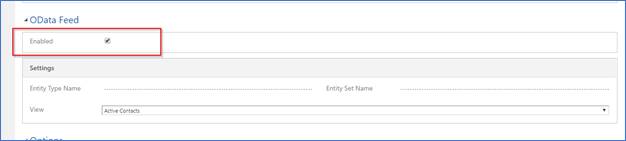
    And then querying the OData through JavaScript we get the data for Entity.
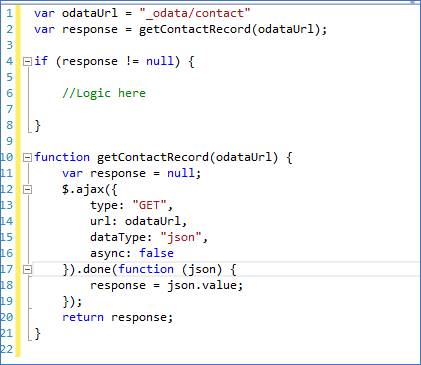
    Everything was working fine as expected till months. Suddenly the client reported that they are not getting the desired results.

    Then on investigating the issue I found the below interesting tip which I would like to share with all here

    On debugging the issue, I found we were getting the below error:

    “500 (Internal Server Error) “. So, wasted more time in trying to find the exact error as debugging the scripts in Portal is troublesome.
    So later I just checked the url to check OData Enabled Entities

    [portal url without language code]/_odata
    In my case: https://blog4.microsoftcrmportals.com/_odata/
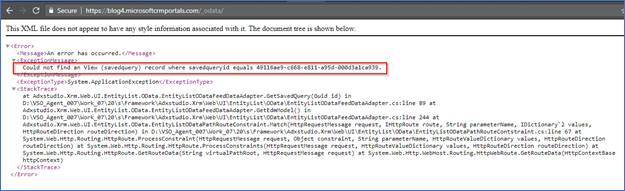
    Exception: “Could not find an View (savedquery) record where savedqueryid equals 49116ae9-c668-e811-a95d-000d3a1ca939.”

    From this I understood that the exact error that was causing the OData request to fail is the view is missing or deleted from system.

    So, from the error it was clear that one of my view was used in an Entity List was deleted from the System but as the error is a generic one I couldn’t get the exact Entity for which it was showing the error.

    So, I had to later do an Advanced Find with below queries and figure out the issue causing record:

    Luckily there were 2 records only one for the Contact and one for the Account.
    And for the Account I found the reference was blank as below:
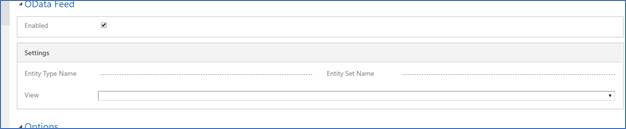
    So, I resolved the issue setting the appropriate View in the above setting.
    However, I thought the fields should have been mandatory when I enable the OData but they were not.

    So, give it a more try I enabled one more Entity List and didn’t select any of the view. And then I again checked if everything is working fine or not.

    And guess what everything was working without any issue.

    So what was the reason it was failing when the view was deleted for my first scenario?

    In Entity List we have a field named “OData View” which stores the view id which it tries to retrieve.

    And based on that I found the below 2 observations

    Case 1: When the view was deleted

    When the view was deleted though it was not shown in the record the reference was not removed from OData View field so it was failing and causing the issue.

    Case 2: When just OData was enabled and no view was selected

    When only OData is enabled for entity list and no view is selected for it the OData view remains Empty and so no error is thrown in this case.

    For reference:
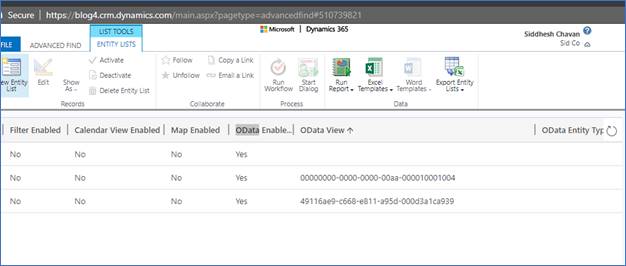
    So next time if you face any such issue you can have the OData view compared and resolve the issue 😉

    Hope this helps.

    Sid 🙂
  • Quick Tip: When using Calculated Field in your Business

    Aware of OOB Calculated Fields! That’s right when your Calculated field involves 2 or 3 fields then you need to be aware of below scenario:

    Suppose we have below fields on the Account record:

    1525879664449_image001
    Sum A, Sum B, Sum C and the calculated fields Sum of A, B, C and A part by B(A/B).
    Sum of A, B, C is calculated as Sum A + Sum B + Sum C;
    A part by B(A/B) is calculated as Sum A / Sum B;
    What if the any of the fields involved in the calculation is null or Zero in case of Division?

    Scenario: If any of the field is null for Addition

    1525879786772_image001

    So, Sum A = 3, Sum B = 3, Sum C = null,
    The expected result is 6.

    But CRM handles it in different way. It ignores the calculation and sets the calculated field to null as you can see above.

    This was one of the concerns which Business raised as it was not properly ignoring the null values. So later we found that this is the OOB behavior of Calculated fields.
    Scenario: If Denominator is ‘0’ involved in Division

    1525879893229_image001

    Sum A = 4, Sum B = 0;
    A part by B(A/B) = null
    It does not give error. It simply ignores and sets the calculated field as null.

    Recently we faced this scenario. So, after searching we got the below Option which could avoid this scenario.

    Create a Business rule of Scope = Entity and try to set the Default values of the fields involved in the calculation so that it will always calculate.
    Hope this helps and adds to your knowledge.