
I was exploring the Dataverse Accelerator App, and I came across this preview feature which explains about the plugin monitoring through Dataverse Accelerator App.
Earlier in my environment I only had 2 options as below –
Create Instant Plugins and Create Automated Plugin

So in order to get the Plugin Monitoring option you may need to update the Dataverse Accelerator app through – https://admin.powerplatform.microsoft.com/.
Select your environment and then Navigate to Dynamics 365 Apps.
You may see the option as Update available besides the “Dataverse Accelerator App”. Click on it and install.
Installation may take few minutes to complete. Once it is complete you see Plugin Monitoring option in the app as below –
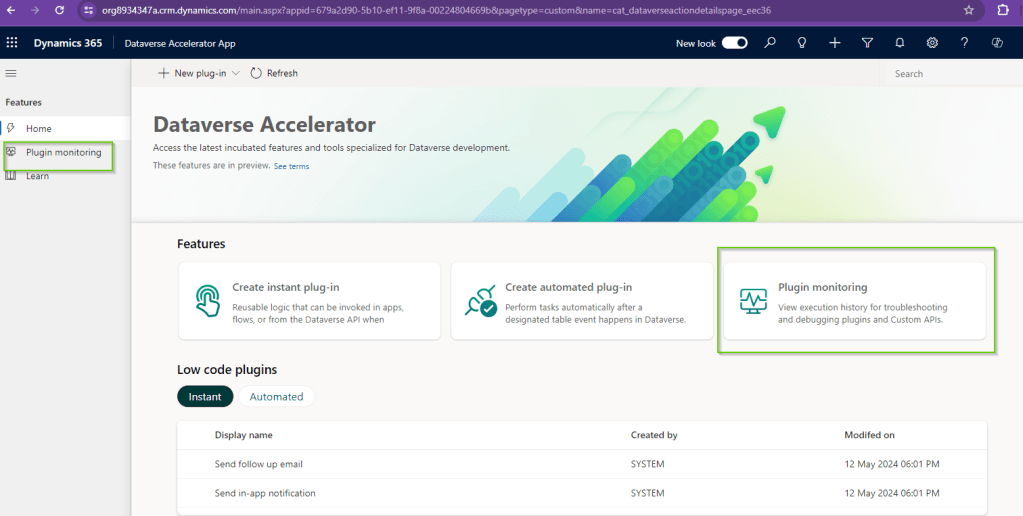
So when you click on the Plugin Monitoring above you will see the Plugin Traces screen as below –
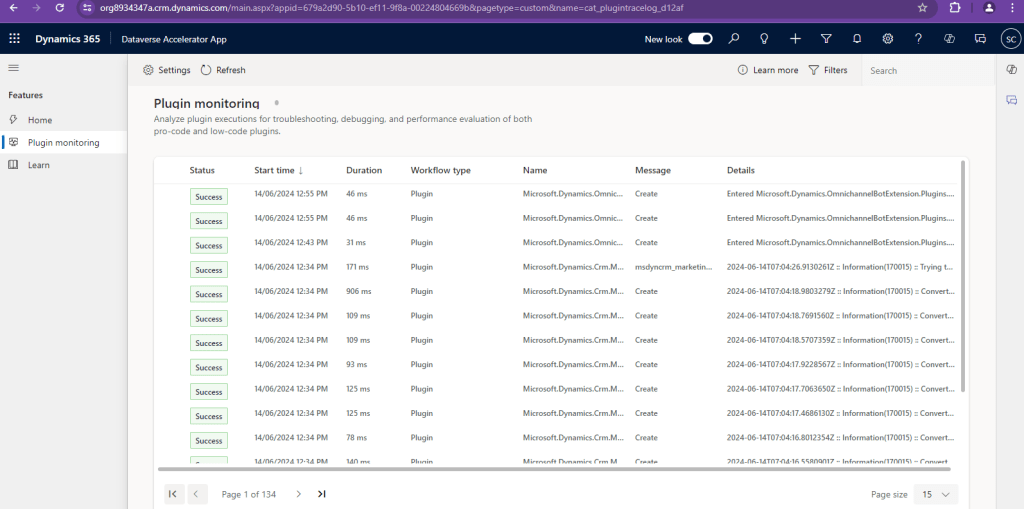
Earlier in order to view the Plugin Traces we would either have to navigate through Settings > Plugin Trace Logs in the old UI (Web UI) or use Plugin Trace Viewer in XrmToolbox.
But now from this latest Plugin Monitoring option in Dataverse Accelerator App we get the new modern UI look to monitor the Plugin Traces.
Also from above if we click on the Settings Icon in Plugin Monitoring page we will get the option to enable/disable the trace logs and no need to navigate to System Settings.

Also when we select any particular trace log record we see the information of Message body and Exception details in the right hand side pop-out as below-
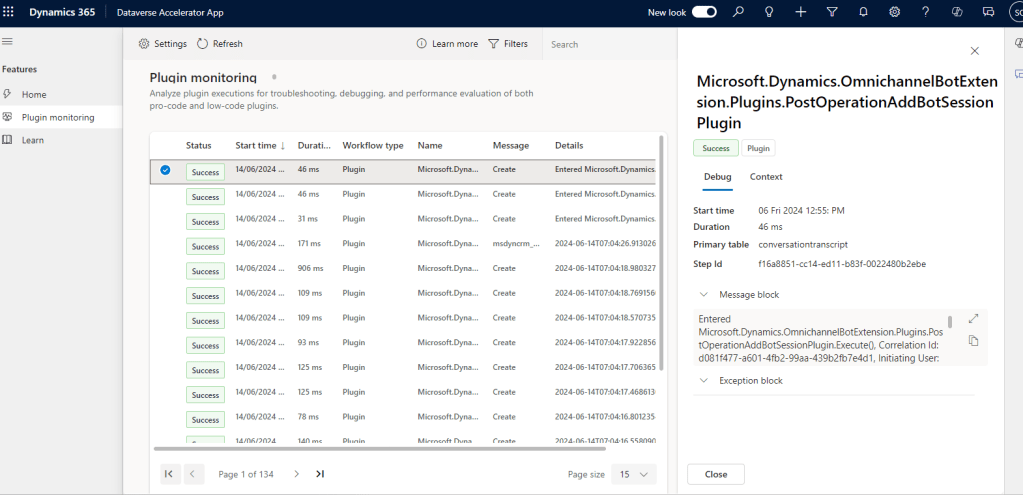
In addition to this, we are also able to see the Status column which represents “Success” or Failure of the operation. Also we have the option to Filter the rows as below

It becomes more handy to filter out the plugins using the available filter options.
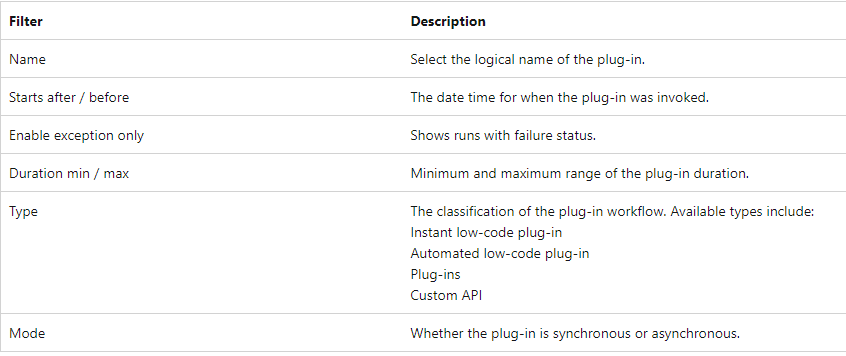
(Image added from docs.microsoft.com)
Using this inbuilt modern UI for monitoring the plugins it will become more handy option for Administrators to monitor the failure and verify the logs.
As it is a preview feature, we may expect some more enhancements in the feature in coming time.
For details like Privileges required, or any FAQ’s on this preview topic you may also follow below link –
Hope this becomes handy feature in coming days !!
 D365 CRM Topics by Sid