Uncategorized

Tip – Getting Field Length Error in Power Automate even after updating the length in Dynamics 365

Recently we had a scenario where we were creating a new record through Power Automate step of say Entity A. We started getting error for the field length being less than the input character. So being production instance we moved the patch of the managed solution from dev to Production increasing the length of the field.

Inspite of moving the updated length of the field we were still getting the same old length error in the Create step in Power Automate.

We found that we had to just bring the Power Automate again from the dev instance to the Production instance.

One more possible way can be just to edit the flow and reactivate it in the environment where it is not working.(As my issue was fixed by moving the Power Automate I was not able to try this part, but you can try this if moving power automate from dev to production is not feasible for you.)

So next time if anyone faces such problem with the field length update in D365 not working in Power Automate even after moving the solution then you can keep the above approached in mind.

Hope this helps and saves your time !

Uncategorized

Tip – RequireNewInstance property to handle TimeOut issues while using CrmServiceClient (XrmTooling)

Recently we had created a windows service which was running continuously on our server. The very next day we started getting Timeout exceptions for the OrganizationServiceProxy created using CrmServiceClient using XrmTooling. This was due to session getting expired after 24 hrs.

We decided to investigate on this and came across a way to fix this. We found this attribute “RequireNewInstance” which can be passed in the connection string which did our job.

We included the connection part in our while loop and in that we set RequireNewInstance = false while creating connection using CrmServiceClient, so that it will create new instance only when required and use the existing cached connection when the service is connected and not expired.

Using this we were able to resolve our timeout issue as when the service gets expired it creates a fresh token and caches it, until it expires. there by not impacting the application output.

while(true) 
{
//Had our logic to read the data continously from Azure Bus
var connectObject = new CrmServiceClient($@"AuthType=ClientSecret;url={organizationUrl};ClientId={clientId};ClientSecret={appKey};RequireNewInstance=false");
}

Uncategorized

Qualify Lead Settings added in latest October Wave Release Plan

Microsoft keeps on adding features in their every releases. Similarly now they have added an important feature which most of the clients might have asked for. And in-order to achieve it you might have done some custom development thereby increasing the effort required. So it is to option to decide what to create and what to not while Qualifying a Lead.

Exactly now we don’t need to write a plugin to achieve this, simply set the settings and its done. I will explain it in detail below:

Navigate to Settings >> System Settings

Open the Sales Tab. You will find the below highlighted option:

Lead1

Qualify Lead experience:

So as you can see there is an default option for create account contact and opportunity on Qualify Lead. By default it is set to YES.  In my case I have changed it to No and now I have created a new Lead and trying to Qualify it.

On Qualify I get the below options:

Lead2

So now I can decide what I want to create on Qualifying a Lead. I select all the options as Yes and click OK.

Then as i result all the 3 records got created. Now moving ahead suppose there are duplicate account or contact details and we try to Qualify the lead the we get the Duplicate warning as below:

Lead3.jpg

If we click continue then the new duplicate Account/Contact records will get created in System. Else if we select the suggested Account/Contact then it will be set and used while creating Opportunity.

Note- The feature is available on both legacy Web Client and the Unified Interface.

This feature is a real time savior and easy to configure.

Keep configuring and do less coding !


Uncategorized

Set Execution Order of Business Rules in CRM

Recently I had been asked by an Interviewer how can we set execution order for business rule in CRM. This actually made me to do some research over to get the right answer.

As such we don’t have any OOB ways defined to set the execution order.

So here is my Scenario suppose I have 2 Business rules for below logic:

  1. First Business rule
    •  If  field is greater than field 10 then set field B to 50.
  2. Second Business rule
    • If  field is greater than field 7then set field B to 90.

So suppose I enter 80 in A. Then what does the field B display ?

Obvious answer that comes in mind is the one which executes last will be displayed.

So CRM works in FIFO here i.e. First In First Out with respect to the order in which Activation of Business rule took place.

So suppose in the above scenario I want BR 2 to execute first and then BR1 then I have to first deactivate the BR1 and reactivate it, so that CRM internally executes BR1 after BR2.

However its tricky to manage it in real life scenario where we need to set the execution order of Business rules. So what you can do is deactivate all the Business rules for an entity and then based on which you need to execute first,second and third and so on you reactivate it in the same order.

Hope this info adds to you CRM knowledge.

Uncategorized

Switch from Default UCI App to Legacy Web Client App in Dynamics CRM

Recently I had signed up a trial environment of Dynamics CRM to explore the latest features. When i entered my default CRM url “https://blog15.crm3.dynamics.com” in the browser,  it appended “forceUCI=1&pagetype=apps” to the url and gave me below page with options to select the respective App to open.

8.4.2.png

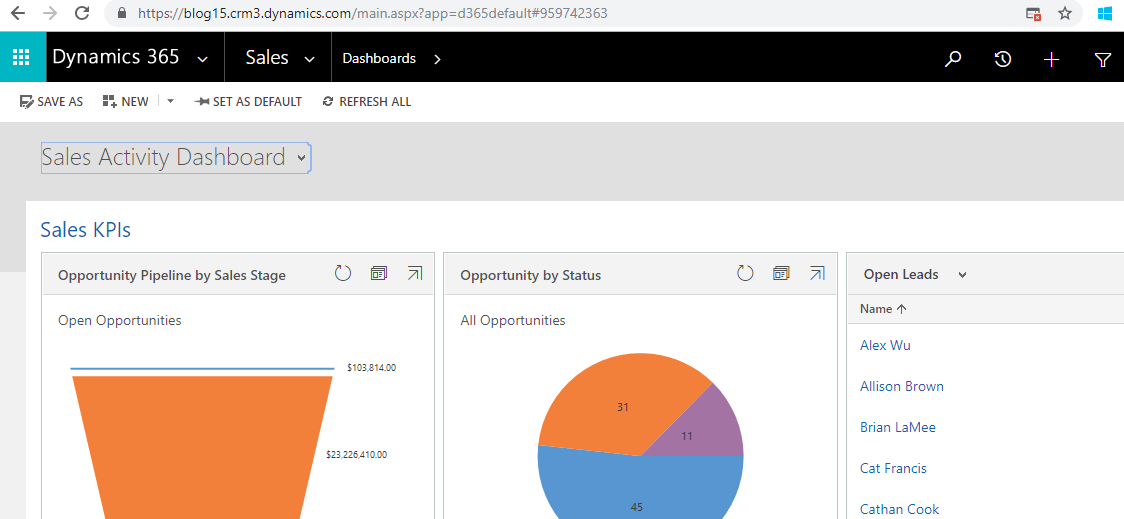
Further on selecting the “Dynamics 365 – custom” app i.e. the web client app by default it was navigating me to the UCI App as shown below:

8.4.1

So I was basically not able to navigate to my Default Legacy Web Client App.

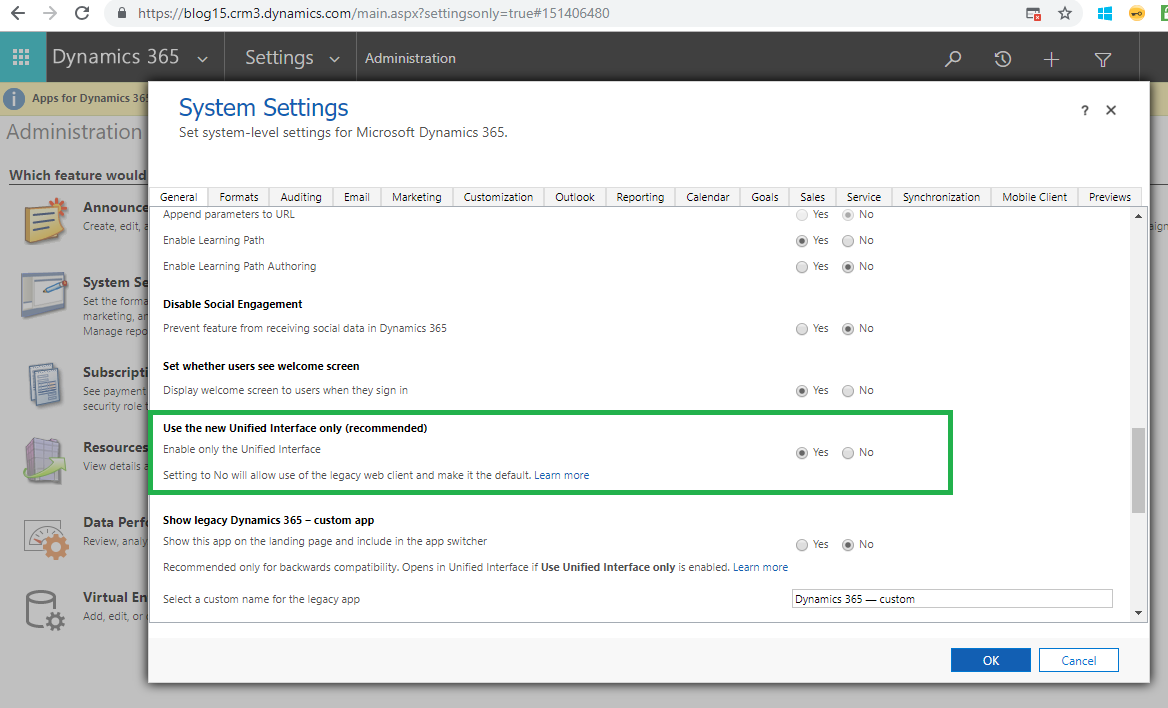
Further on investigating and checking through Settings I found that we have an option now to enable/disable the legacy web client i.e. “Enable only the Unified Interface” which is set to Yes by default.

8.4.3.png

And it was this setting which was causing only UCI app layout to be displayed even if i tried to open the legacy Web Client apps.

Further I set the setting to ‘No’ and was able to navigate to the Web Client app as below:

8.4.4

This may be an indication that Microsoft might plan to move from Legacy Web Client to UCI in future major release.

Hope this helps!!