Category: Uncategorized

  • Read Formatted values from Related Entities using Linq in Dynamics 365

    Recently, I was trying to retrieve formatted values using Linq.I was able to do for the attribute of the same entity with the help of this blog: Read Formatted Values using Linq.

  • How Timeout Until with particular field works in Workflow Processes in CRM

    Every System Customizer/Developer might have created a waiting workflow using Timeouts.

    Just noticed one thing which made me think is it really working as expected.

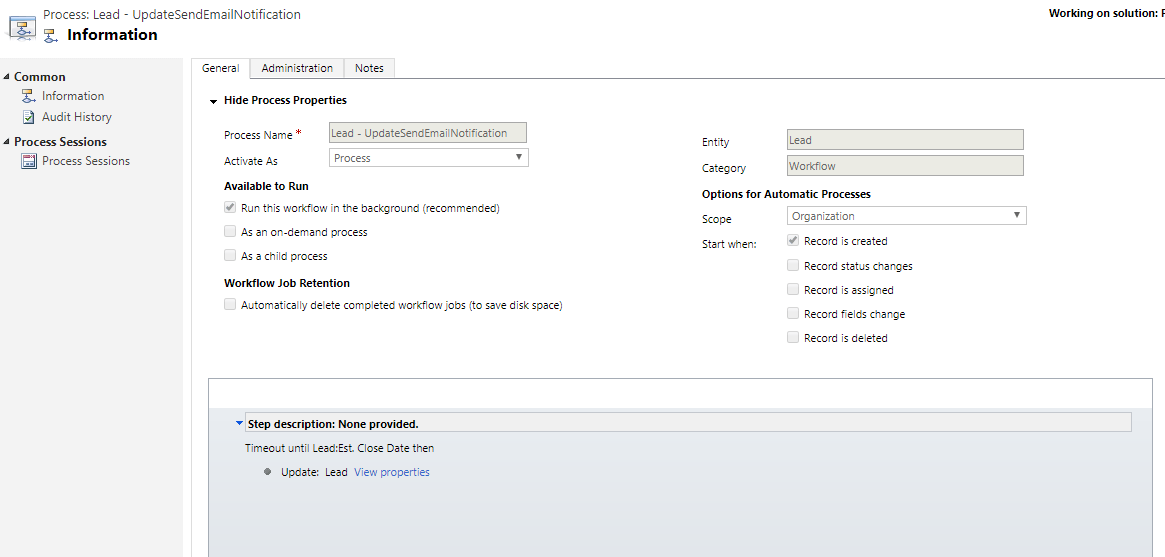
    Suppose I had a workflow on Create of Lead to wait till the Est Close Date as below:

    2018-08-25 22_13_13-Process_ Lead - UpdateSendEmailNotification - Microsoft Dynamics 365

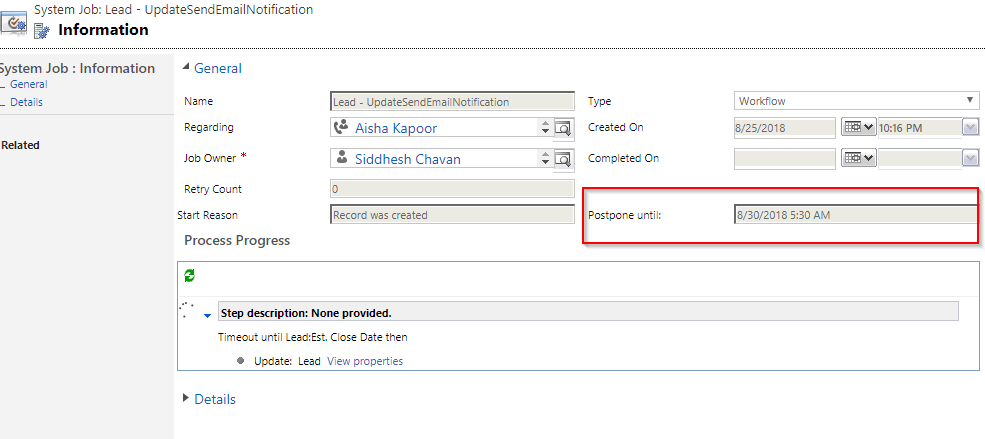
    Now I created a Lead in my System suppose so that this workflow is triggered, and it waits till the Estimated Date. So, the Process Session looks as below:

    2018-08-25 22_17_34-System Job_ Lead - UpdateSendEmailNotification - Microsoft Dynamics 365.png

    So as per this the workflow is Waiting and Postpone until Estimated Date i.e. a Future Date.

    Now suppose I change the Estimated Date to Present Date then what should happen?

    CRM interestingly handles this scenario and causes the workflow to resume and execute the logic.

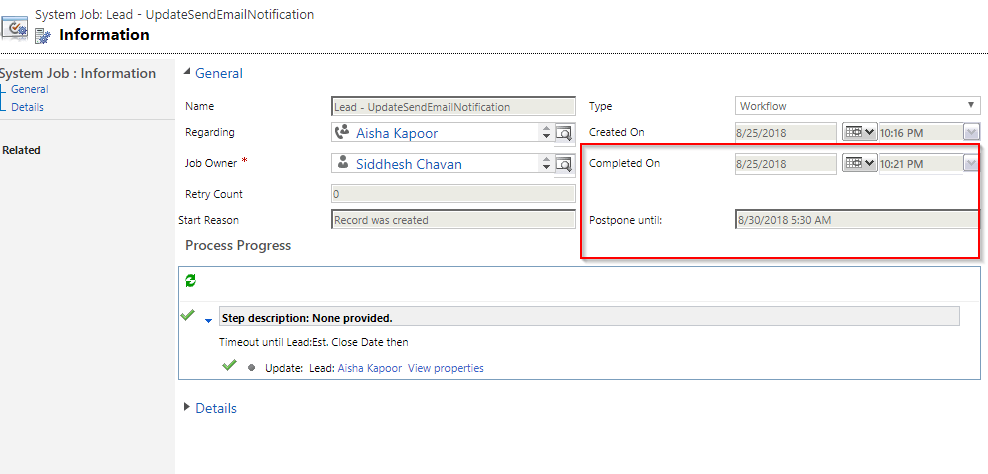
    You can see the Process Session below:

    2018-08-25 22_22_04-System Job_ Lead - UpdateSendEmailNotification - Microsoft Dynamics 365.png

    So, as you see here the Postpone Date shows the same date whereas the Completed on Date represents the workflows completion Date.

    So, CRM interestingly has a mechanism which keeps on checking whether the Timeout condition of the field is met or not and then executes accordingly by itself.

    Hope you enjoyed CRMโ€™s interesting fact. ๐Ÿ˜Š

  • Tip โ€“ Which Form Does Bulk Edit and Create/Update step in Workflow displays?

    A simple question which 3 out of 10 System Customizers/Developers may answer correctly.

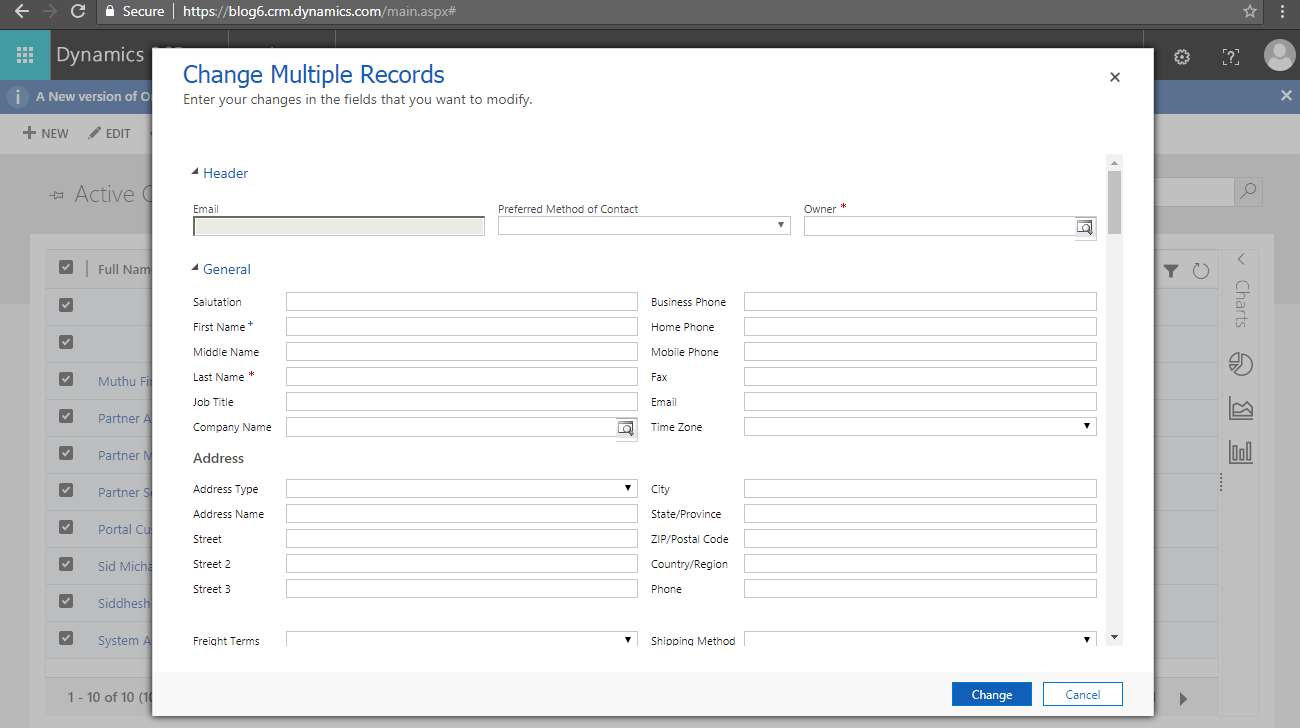
    Suppose you are doing a Bulk Edit for contacts from the View a form with fields get displayed which looks as below:

    2018-08-19 17_40_11-Contacts Active Contacts - Microsoft Dynamics 365 - Microsoft Dynamics 365

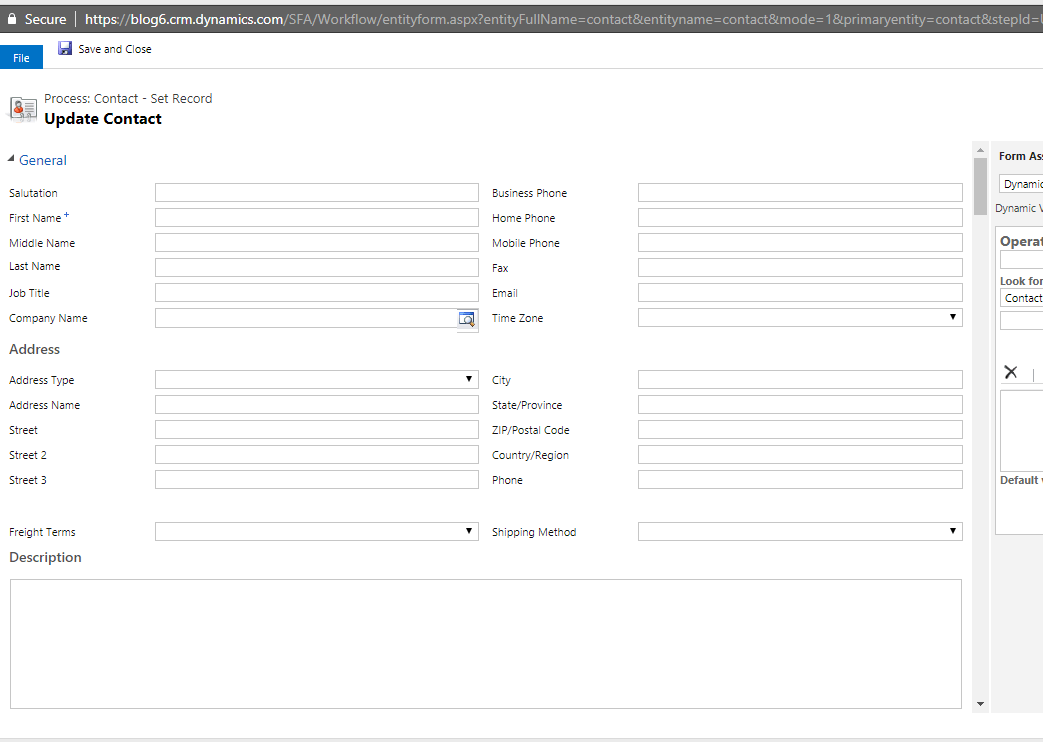
    Similarly, if you add an Update Record step on a workflow on Contact record then you might see the same Form and fields without Headers as below:

    2018-08-19 17_44_34-Contact_ Information - Microsoft Dynamics 365

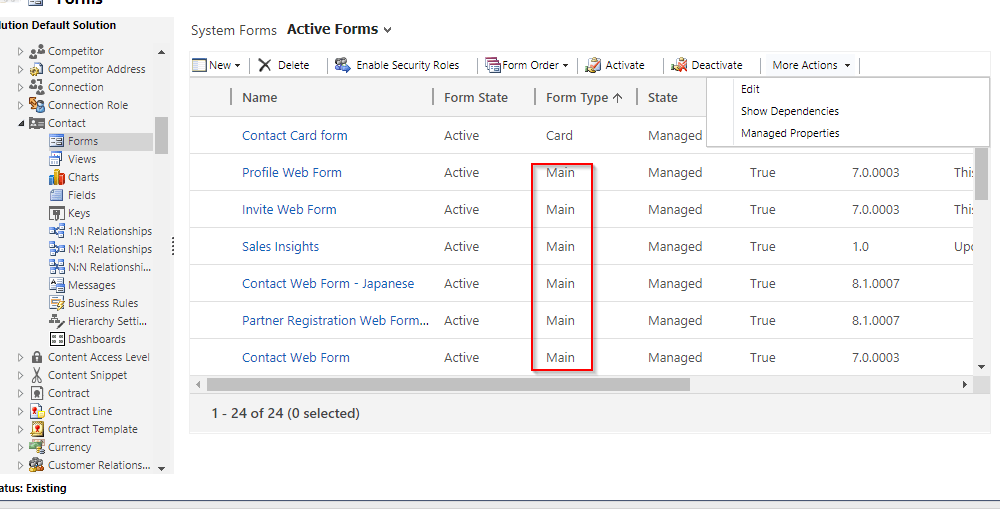
    So, if you ask which form fields the above form displays then you might say the Main Form. But its partially correct answer. As my Contact may have multiple Main Forms in the System.

    2018-08-19 17_49_52-Customization - Microsoft Dynamics 365

    So, the answer to this question is CRM follows the rule which it follows while opening the record of an Entity i.e. โ€œIt displays the last visited Form by the user for that Entity for which he/she is trying to Bulk Edit or trying to add Create/Update step of the particular Entity in a Workflowโ€.

    Hope this helps ๐Ÿ˜Š

  • Alert โ€“ Changing Form Name of Forms used in Portal Configuration

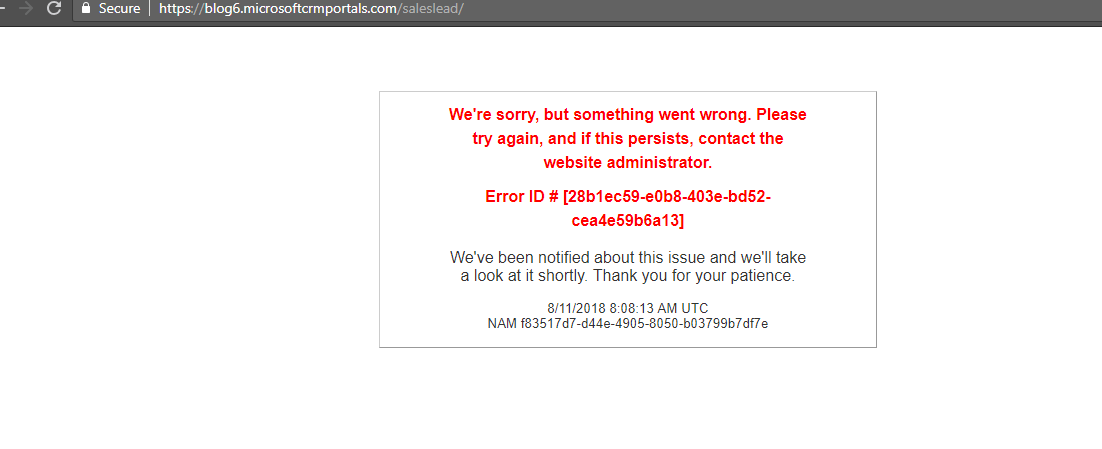
    Recently we encountered a strange issue in our Portal where the working Web Page started displaying not so descriptive but a generic error which many of you may have faced earlier for different reasons. So, the error looks as below:

    2018-08-11 13_46_40-We're sorry, but something went wrong (500)This was a generic message. Thanks for the feature where we can now Disable the Custom error which is displayed above and can show the exact error in Portal. For more details on that you may refer the below link:
    https://docs.microsoft.com/en-us/dynamics365/customer-engagement/portals/view-portal-error-log

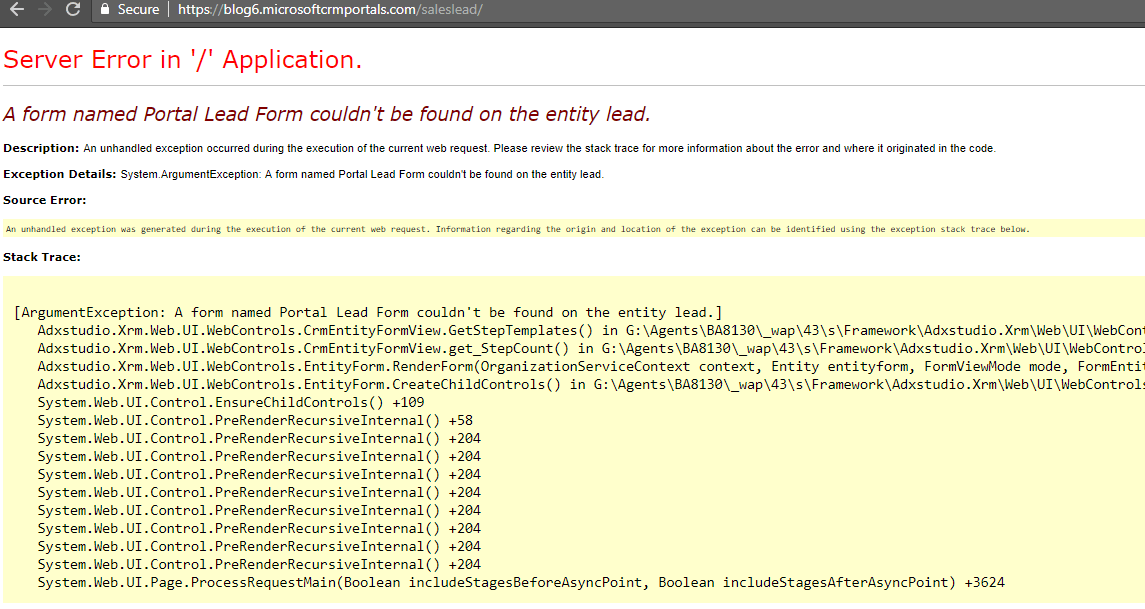
    So, Disabling the Custom Error gave me the exact error in my case as you can see below:

    2018-08-11 13_56_44-A form named Portal Lead Form couldn't be found on the entity lead.

    This was strange as the configuration was working fine earlier and then it stopped working. ย But the fact was that we had changed the form name from โ€œPortal Lead Formโ€ to โ€œExtended Portal Lead Formโ€.

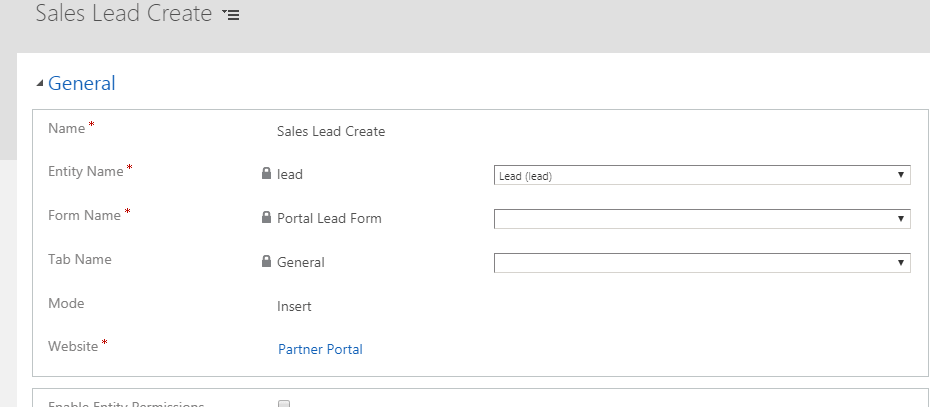
    So, we opened the Entity Form to check the form selected on the record.

    2018-08-11 14_10_31-Entity Form_ Sales Lead Create

    And there you can see the dropdown is blank and the Form Name field contains the old value i.e. Portal Lead Form which was causing the error.

    So, the conclusion is if you are changing the Form Name of any Form which is used in Portal Configurations then make sure you update the records manually with the latest values.

    Hope this helps ๐Ÿ˜Š

  • Unit Testing of Queries involving LINQ Joins with Fakes C#

    Recently we encountered a scenario where we had join queries involved in our code.

    So, the requirement we had to pass the data of the joined entities accordingly which would satisfy the code logic in our Unit Test.

    But it was not as easy as we thought as there is a tricky part involved there.

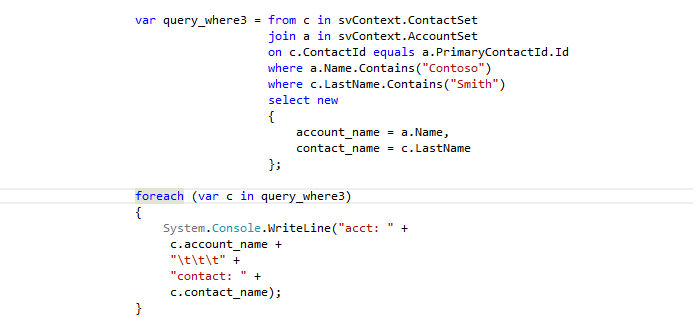
    Sample Plugin Code for which we will be creating Unit Test:

    1

    As you can see in our code we are querying the Contact entity and using Joins with the Account entity to read the Account Name along with Contact Last Name.

    So, we will be adding the below code to send the record in the Response:

    2

    But the problem here was How to send the joined Entityโ€™s value as if we don’t pass any value then it was showing null value in the returned query results.

    So, we thought of going for AliasedValue concept. So we decided to pass โ€œa.nameโ€ field in the attributes and set the value as below as in our Linq query we had used โ€œjoin aโ€ in the Linq query:

    contactObj.Attributes[“a.name”] = new AliasedValue(Account.EntityLogicalName, “name”, “Test Sid”);

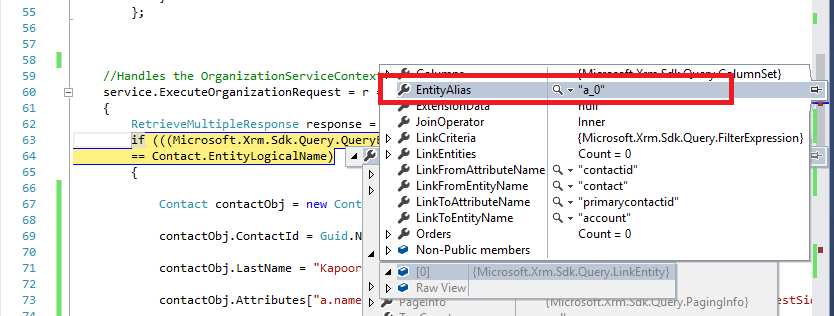
    But still, it didnโ€™t work. On further spending more time and debugging the request we found the tricky part involved:

    3

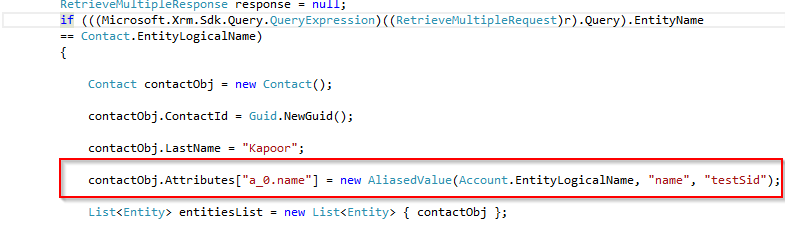
    So as you can see the Entity Alias name involved is โ€œa_0โ€ and not โ€œaโ€ so we changed the code to โ€œa_0.nameโ€ as below and it worked like a charm ๐Ÿ˜Š

    4

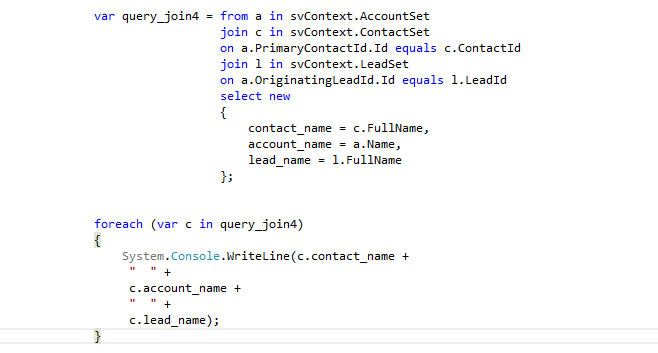
    The above example shows how it works when one join is involved. Just for more curiosity, I tried with below multiple joins query:

    5.png

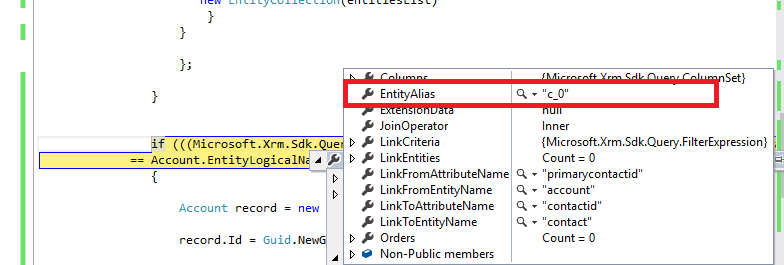
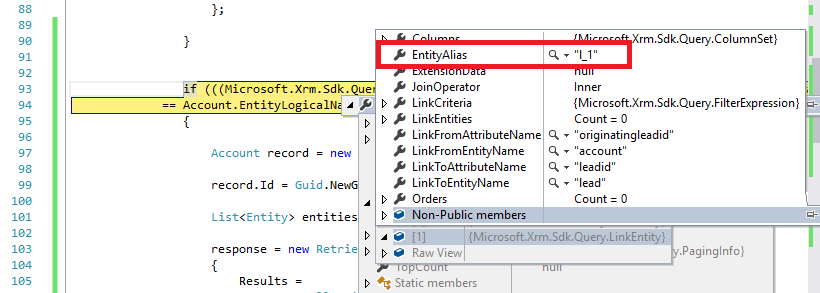
    So, it returns the link entity information as below:

    For 1st Join on Contact

    6.png

    For 2nd Join on Lead

    7.png

    From the above results, I came to know that joins in LINQ works in a bit different way!!

    The entity alias name is populated based on the joins order in your LINQ Query starting from 0 and increasing further if the query contains more joins along with the variable used for the respective entities.

    Hope this helps and ease your Unit Testing with Fakes.