Uncategorized

Preview -Split Audience in the Customer Journey by Percentage/Number

In the latest update from Microsoft, a highly anticipated feature has been introduced: the ability to split the audience in a journey based on either a percentage or a specific number of customers. This enhancement is a game-changer for many clients, as it allows them to efficiently target specific customer segments within a single journey. For example, businesses can now easily offer “First 1000 Coupons” to the first 1,000 customers without needing to create multiple journeys. Previously, marketers had to rely on branching using attributes, if/then conditions, or trigger activation checks within the journey. These methods, while functional, could sometimes cause delays in processing. This new feature streamlines the process, ensuring faster and more effective campaign execution.

To use this feature in the customer journey you need to select “Audience split(preview)” tile in the journey as below –

Then you will get the below screen to split the audience based on percentage as below-

As you can see, the current option to “Split audience by” only allows for selection by percentage, with no option to split by a specific number. This limitation might be due to the feature being in preview, meaning it’s still in the testing phase and not fully rolled out. It’s possible that the ability to split the audience by a specific number will be included in future updates as Microsoft continues to refine and expand this feature. Keep an eye out for upcoming releases, where this capability may become available.

Let’s dive into the “Split Audience by Percentage” feature. With this capability, you have the flexibility to divide your audience between branches based on the percentage you specify. If you want to split the audience equally, it’s as simple as clicking the “Add branch” button and then selecting the “Equalize” option. This automatically distributes the audience evenly across the branches.

However, if you have a specific plan in mind, you can manually adjust the percentages to match your strategy. Once your audience is divided, you can assign different activities to each branch. For instance, in my example, I’ve chosen to send 50% of the audience an email (Email 1) with one type of content, while the remaining 50% receives a different email (Email 2) with other content. This level of customization allows for more targeted and effective campaigns, tailored to different segments of your audience.

This feature also provides valuable insights into how different segments of your audience respond to specific actions within each branch. By comparing these reactions, organizations can optimize their strategies, ultimately driving better sales performance.

For details around the Split Audience by Number you may go through below blog –

https://learn.microsoft.com/en-us/dynamics365/release-plan/2024wave1/customer-insights/dynamics365-customer-insights-journeys/provide-varied-experiences-one-journey-using-journey-split-tiles#feature-details

Hope to see many such interesting features in future !!

Uncategorized

Tip – Working with Custom Triggers, Azure Service Bus in D365 Marketing!!

Custom Triggers in Real Time Marketing helps us to achieve different Integrations with multiple system and the contacts in D365 Marketing. There by helping to facilitate the Journeys through various channels and systems. Today I will explain here one of the use case which I recently came across.

I had a requirement where I had to assign the available Offers(Table) to the contacts entering the Journey. And on successful assignation of Offers we had to continue the journey to send the related offers through Email.

So here I decided to have one custom trigger “Grant Offer” to be called in Journey as below –

And then when the custom trigger gets called pass the data to Azure Service Bus through Endpoint Integration with D365 Marketing.

Reference for Azure Integration and registering Service End using Plugin Registration Tool- https://learn.microsoft.com/en-us/power-apps/developer/data-platform/walkthrough-configure-azure-sas-integration?view=op-9-1

So basically as explained in the blog we had registered Plugin Step on the Service Endpoint with the message set to “msdynmkt_grantoffer_XXXXX” which is nothing but the Custom Trigger which we had created in RTM(Real Time Marketing).

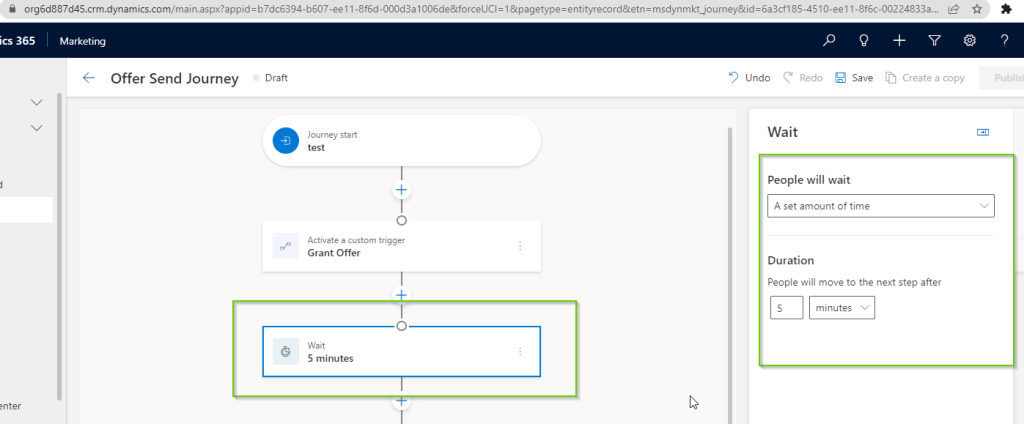
It was ok till this point, the real challenge was with the further requirement where we had to wait till the Offer records are updated with the contact lookup entering the journey. As we were sending the value of this offer record in the Email so we had added a wait condition for 5 minutes as below –

This was ok till the count of Contacts entering the journey was less like 50-100. Actual problem started when the record count in journey increased. I mean lot of messages were posted to the queue and the processing time was more than 5 mins. So what happened is the contacts started receiving Empty Offer values in the email as the wait time of 5 minutes was completed for that particular contact and it was still not processed by the ASB (Azure Service Bus) listening application.

Increasing the Wait Time to 1 hour or such would have caused all the contacts in the journey to wait till the specified time. So this was not efficient and expected as every contact was forced to wait for 1 hour till it completes the processing.

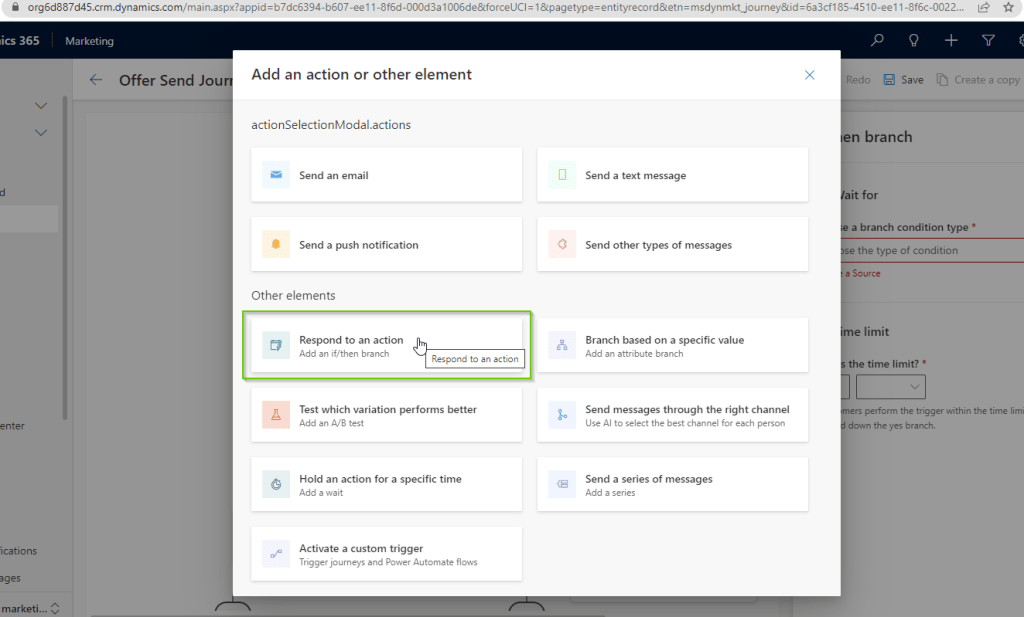
After checking the available options, I found that we can use a custom trigger to achieve this. There is an option “Respond to an action” which can give us way to use another trigger as shown below –

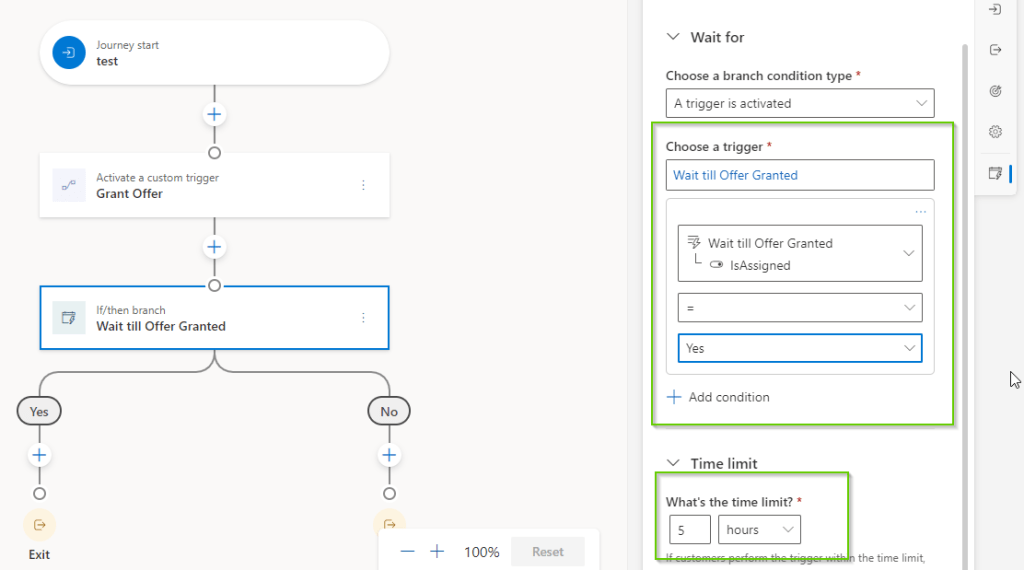
After adding the above step we get below screen to configure the setting –

After selecting the “A trigger is activated” option in Wait for condition and selecting the new trigger “Wait till Offer Granted”, I got the option to select the attribute “IsAssigned” which I had created as parameter for the “Wait till Offer Granted” trigger. So I configured the condition as shown below

As you can see here there is Time Limit selected as 5 hours so it means at the max it will wait till 5 hours and then it will proceed to “No” branch.

Further, the most important change I had to add was the logic to call this new trigger “Wait till Offer Granted” from my ASB listener application, just after the Offer record was updated with contact lookup, just how we usually execute any OrganizationRequest in CRM C# application.

Also, one more highlighting part here is the bindingid attribute which I had used while calling the wait trigger by passing the value of parent journey id i.e. of “Offer Send Journey”. This makes sure that the “Wait Till Offer Granted” trigger only activates for the related parent journey and not any other journey where the same wait trigger is used.

And then guess what moment the trigger was called for particular contact in the journey it worked like charm! The contacts just started flowing in the Yes branch and I was able to manage my logic using another Custom Trigger. The Wait limit of 5 hours was just used to make sure my ASB listener will complete the process for the contacts flowing in the journey.

Hope this approach helps you next time you try to incorporate WAITS in your Journeys in RTM.

Cheers!!