
In the earlier blog, we have seen how we can use Custom Triggers in the exit criteria so that the customers can exit the journey in between when the trigger is activated.
Today we will see how we can do it using Segments. In the Exit Criteria in Journey we have another option as below –

“Exit by segments” — So once the contact gets added to the selected segment then it should exit the current Journey.- this is the expected behavior. As we are considering the same journey flow as we had in part 1 so I will directly jump into the Segment creation part which we will select in the Exit criteria.
Exit Segment #1–
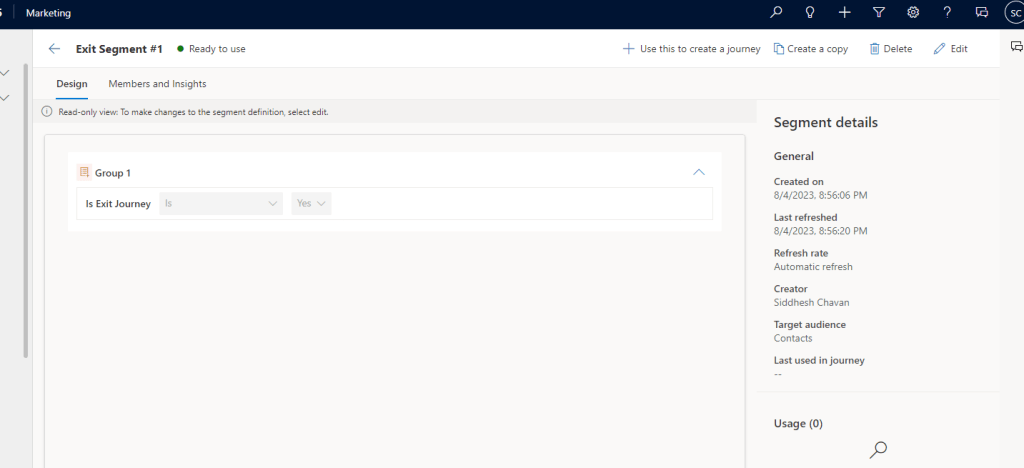
As per this, the contacts will get added in this Segment when Is Exit Journey = Yes.
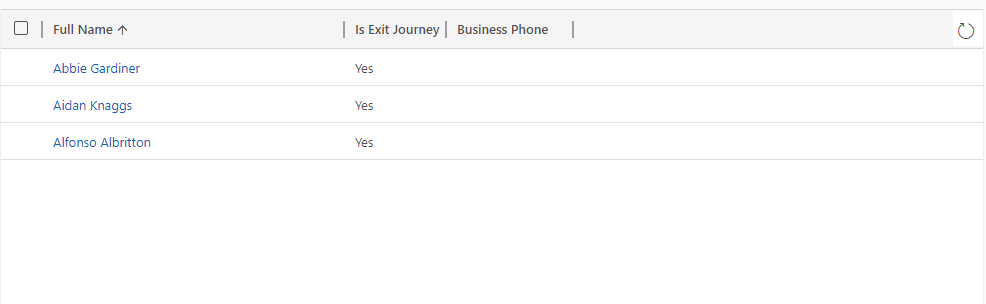
So first in our journey the Contacts will flow till it encounters the 15 min wait time, then we will update the Is Exit Journey column of 3 contacts as Yes as below –
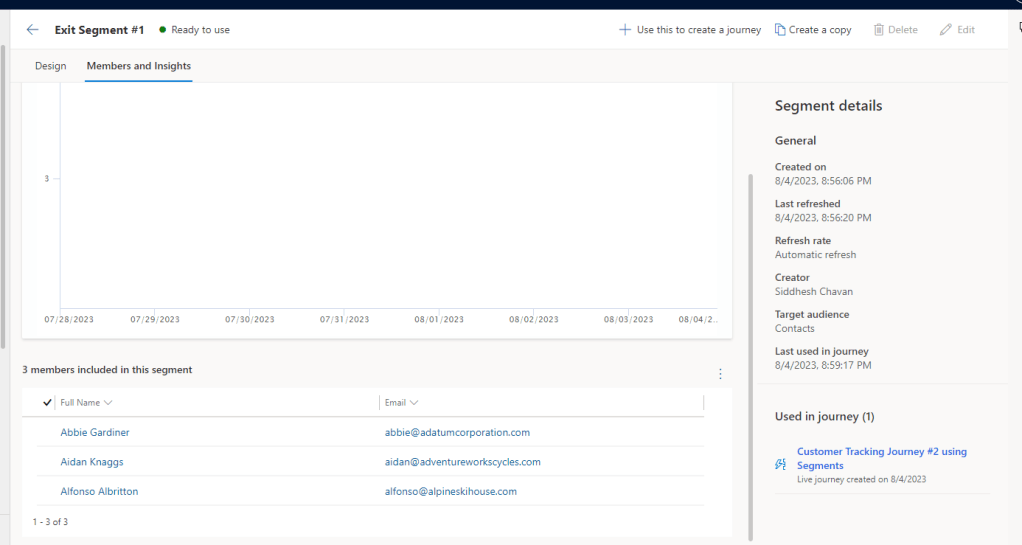
Now the 3 contacts will be added in the segment “Exit Segment#1” as you can see below-
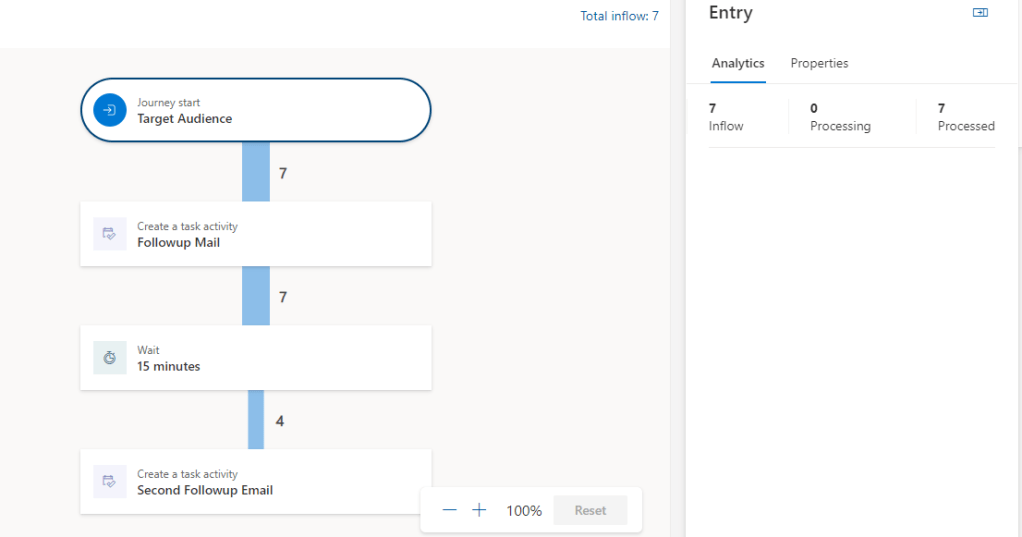
Now in our Journey after execution of wait block it will look like below-
4 contacts will move ahead and 3 contacts are exited as it gets added to the “Exit Segment #1” segment.
In this way we can make use of Segments to exit from the Journeys based on respective segments.
Hope this helps!
Happy D365 Marketing!!
 D365 CRM Topics by Sid